Using the Library
The gist in 10 seconds
- The Library is the tab next to MIXER: the studio's files, for the whole band. Sheet music and charts (PDF, images), backing tracks (audio), and your recordings.
- Add, or drag and drop. Three filters: Audio, Docs, Records.
- On a file: load it as backing track, present it live to the band (it shows up for everyone, next to the cameras), preview it for yourself only, download it.
- REC recordings land in Records on their own.
The Library at a glance
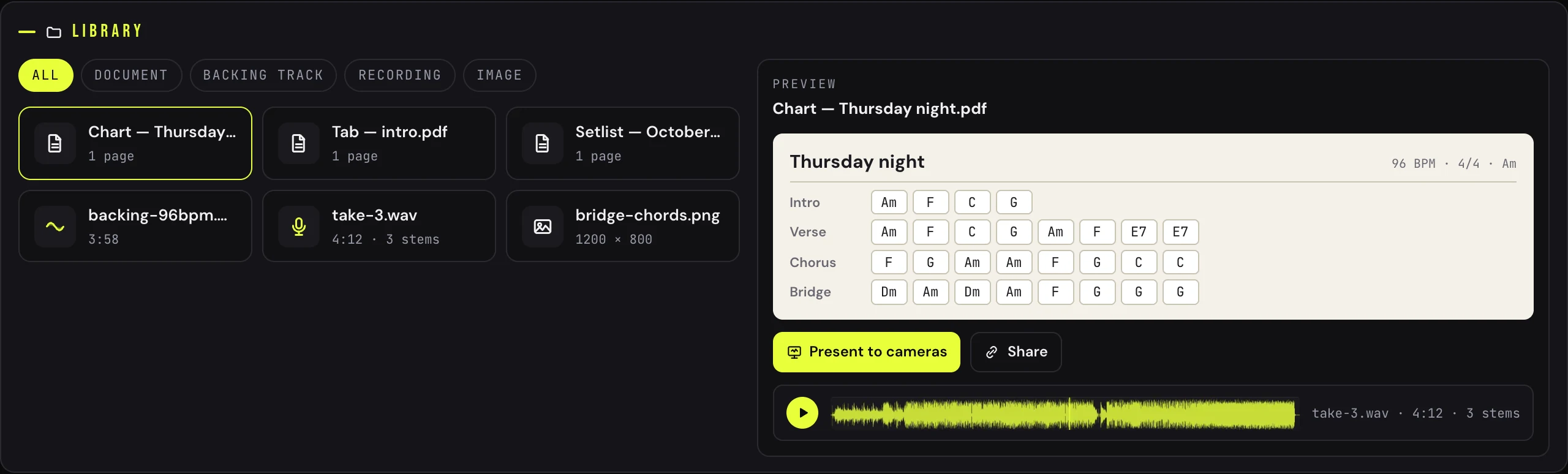
The Library tab — the list on the left, preview and actions on the right
Steps
1
Open the Library tab
At the top of the studio, next to MIXER. The Library belongs to the studio: all its members see the same files, in session or not.
2
Add your files
Add button, or drag and drop straight into the list. Three accepted types: PDF, image (JPG, PNG, WebP), audio. A file of another type is ignored, and Jamodio tells you.
3
Find them again
Search filters by name; the Audio, Docs, Records filters sort by use. Records are your recordings: every REC take is dropped there automatically.
4
Present a chart to the band
On a PDF or an image: Present live. The document appears for every musician, in the cameras area, with your name (“Presented by …”). You turn the pages for everyone; another musician can take control. The preview is for you only.
5
Load a backing track
On an audio file: Load as backing track. It lands in the BACKING TRACK player, under the console, with its own strip in the console. Everyone hears it, in time, and each person sets their level with the Backing strip's fader. To unload it: the player's Eject button.
6
Record, and listen back
Arm the strips (R), press REC: when you stop, the take is dropped into Records. You can preview it, download it, or load it as backing to play over it.
What the Library does not do.
A file loaded on the backing track or presented live cannot be deleted: eject it from the player or stop the presentation first. The studio's space is limited: when it is full, Jamodio tells you, and a recording is then downloaded to your computer instead. A Free account cannot upload files to the Library: uploading is reserved for the Duo, Teacher and Band plans. In a public jam session, there is no Library.
A file loaded on the backing track or presented live cannot be deleted: eject it from the player or stop the presentation first. The studio's space is limited: when it is full, Jamodio tells you, and a recording is then downloaded to your computer instead. A Free account cannot upload files to the Library: uploading is reserved for the Duo, Teacher and Band plans. In a public jam session, there is no Library.
If it does not work
- “Unsupported type”: PDF, image or audio only. A chart in .docx or .musx gets converted to PDF first.
- The upload fails: file too big, studio space full, or network. Jamodio says which.
- The band cannot see my chart: you opened the preview (personal), not Present live. Or another musician is already presenting: take control.
- The backing is not in time for everyone: each person's Audio Engine plays it, locked to the shared clock. If a musician drifts, their bubble says why (buffer, computer).
- My recording is not in Records: the space was full, it was downloaded locally. Look in your Downloads folder.
Still stuck? Write to support@jamodio.com: we reply within 24 hours.