Create and join a studio
- 1 subscriber creates the studio and shares the link — that's the host.
- Invited musicians join free via that link, no subscription required.
- Everyone gets the same audio quality, regardless of plan.
- To enter the studio you need the Audio Engine: a small app you install once, which carries all the sound. The studio door offers to install it or launch it.
- 5-minute setup → first session.
Host or Guest — what's the difference?
Step 1 — Create an account
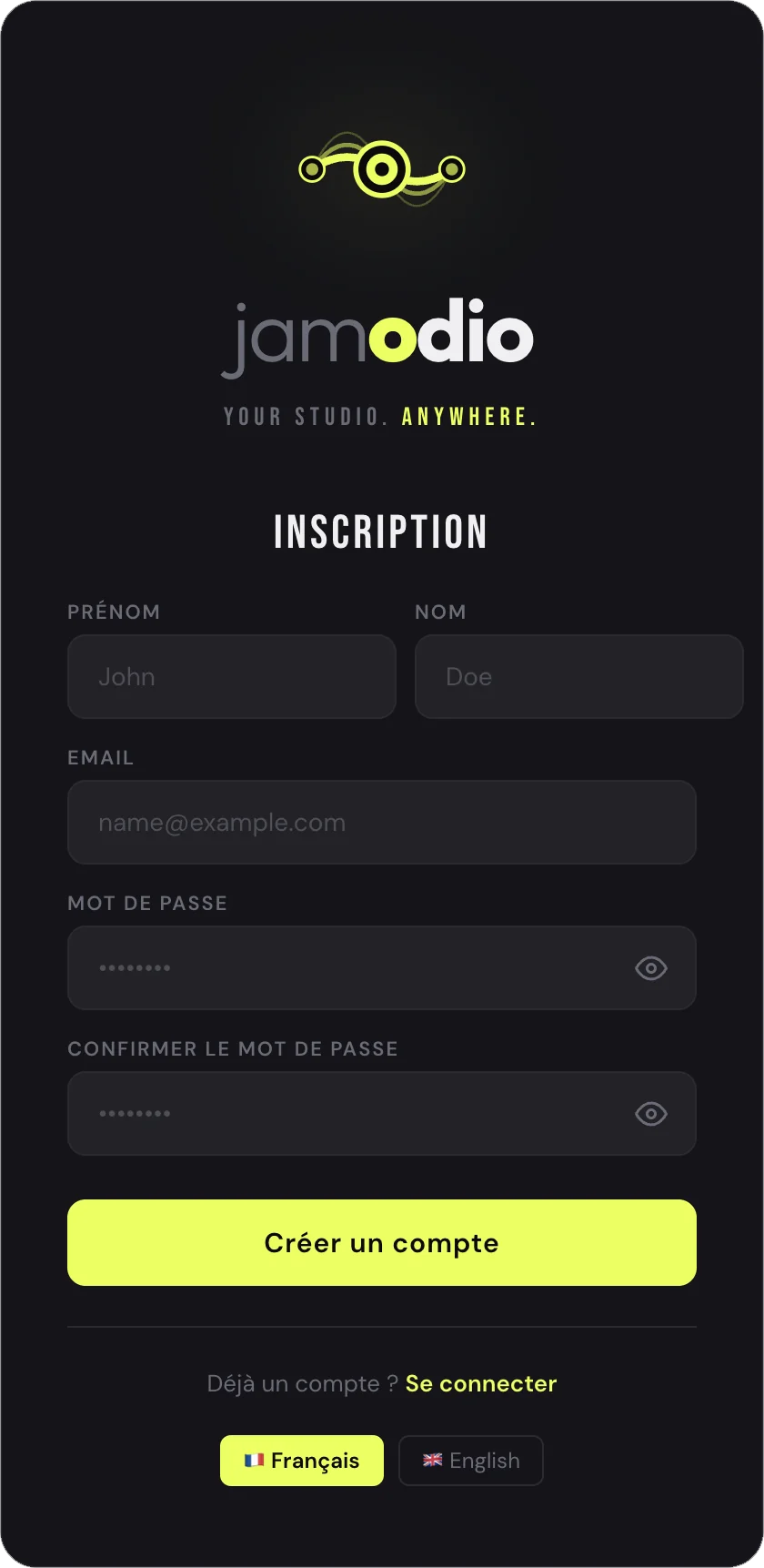
jamodio.com/appYour musicians create their account for free the same way. No credit card, no subscription required to join a studio.
Step 2 — Create a studio (host only)
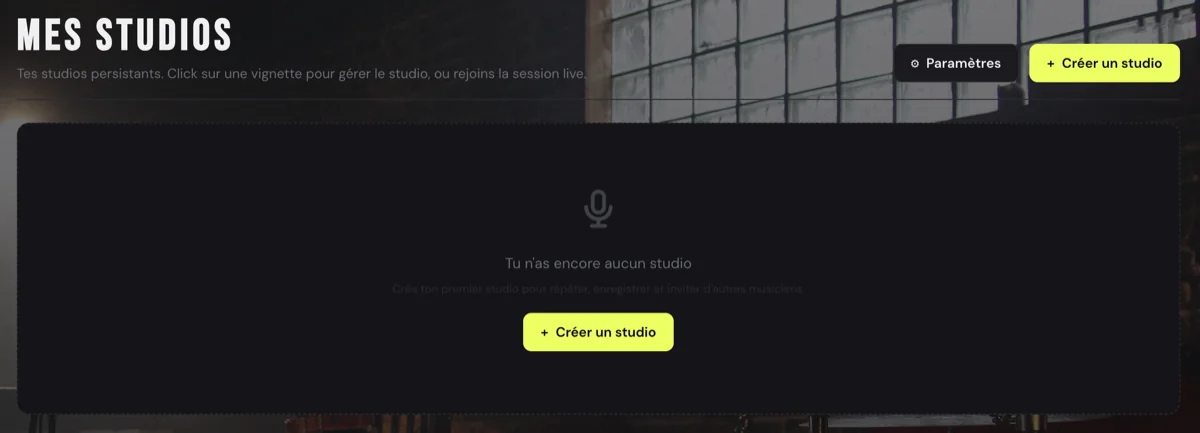
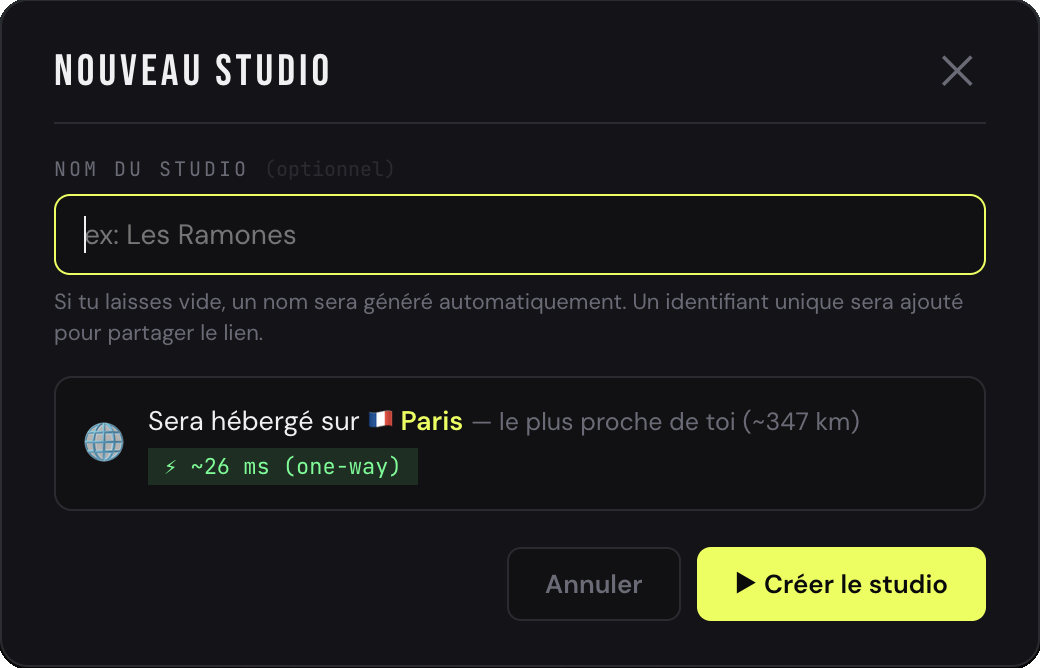
Step 3 — Invite your musicians
Open "Members" from your studio: you'll find an invite link to copy, and a field to invite by email.
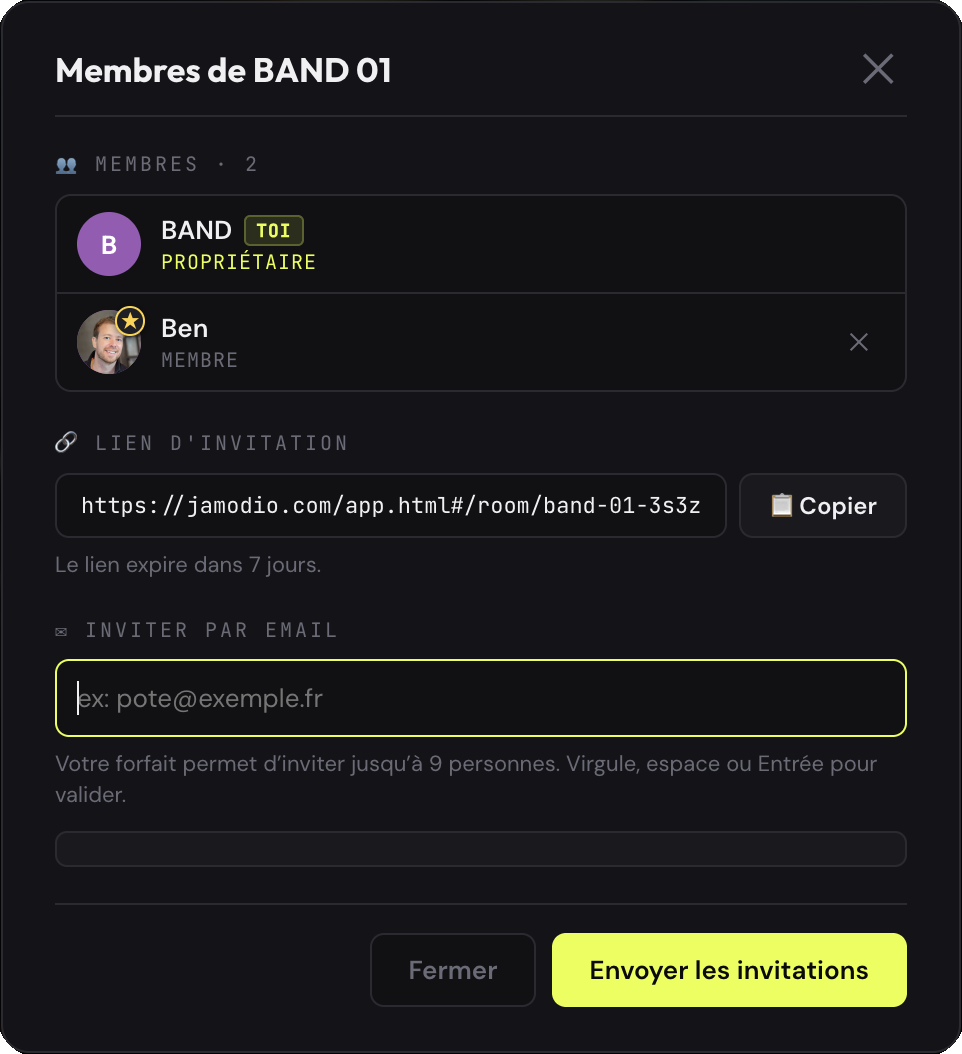
jamodio.com/app#/room/band-01-3s3z. Click "Copy" and send it via WhatsApp, SMS, email… It expires after 7 days (Free temporary studio: at midnight UTC).Already mid-session? You can also invite live via the  buttons at the top of the studio.
And once you are in
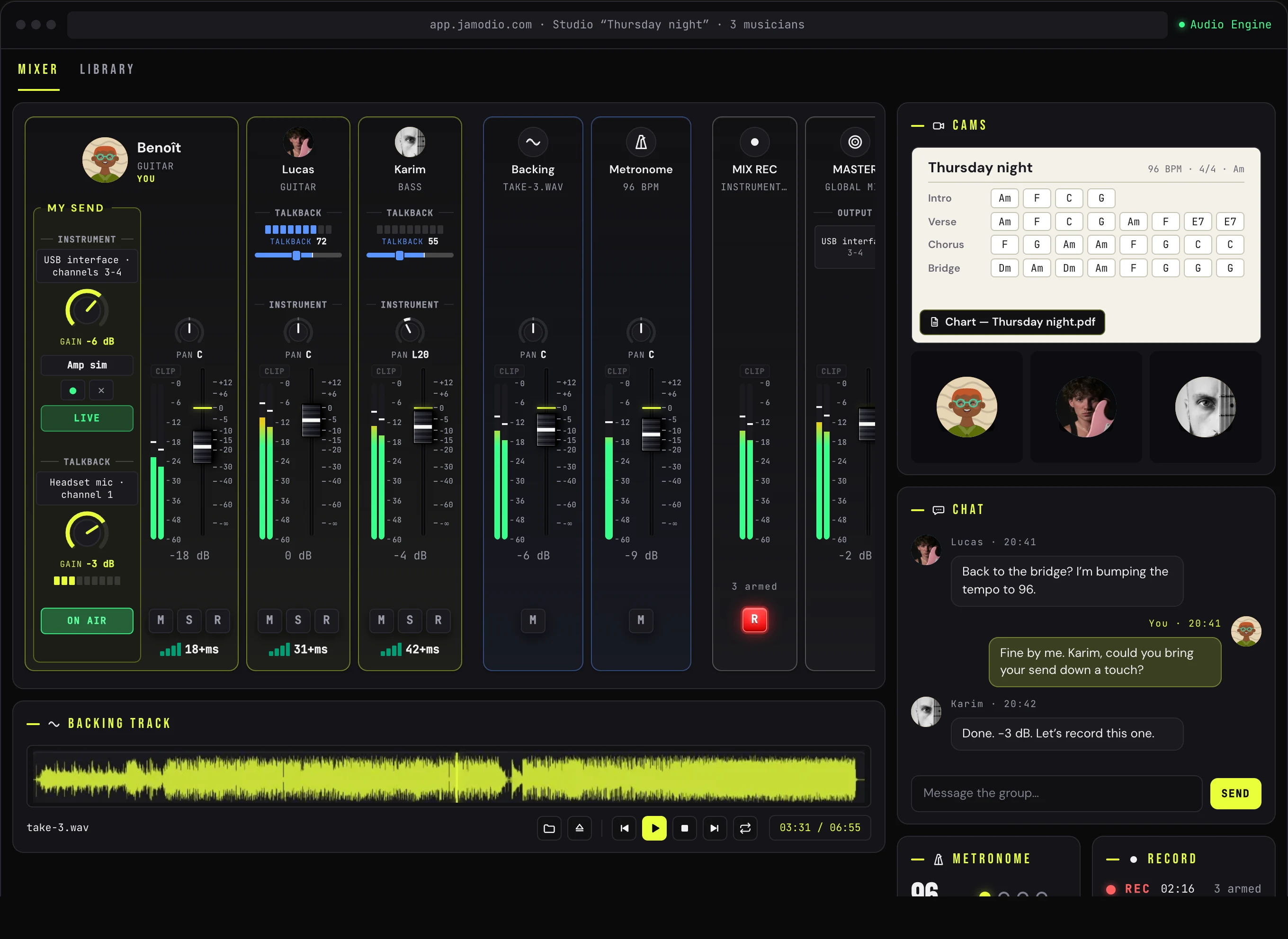
Your strip is the first on the left: that is where you choose what the others receive from you (instrument, talkback, gain), while the console faders only set your headphones. At the bottom of each musician, a small button with bars and a figure: your latency bubble.
Find and configure your studios
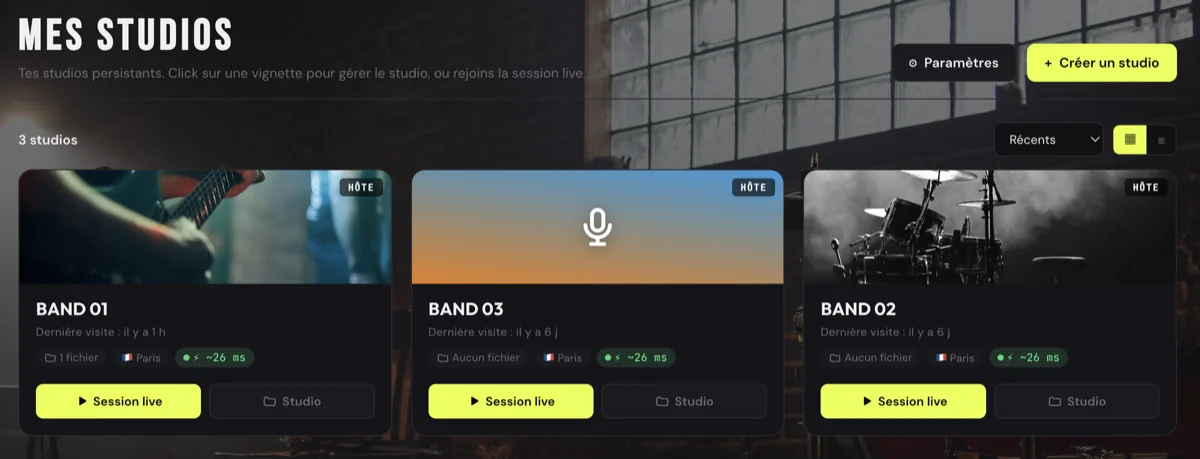
"My Studios" lists every studio you've created or joined, each with its estimated latency. On a tile, two buttons: "Live session" to jump straight into the session, or "Studio" to open its configuration.
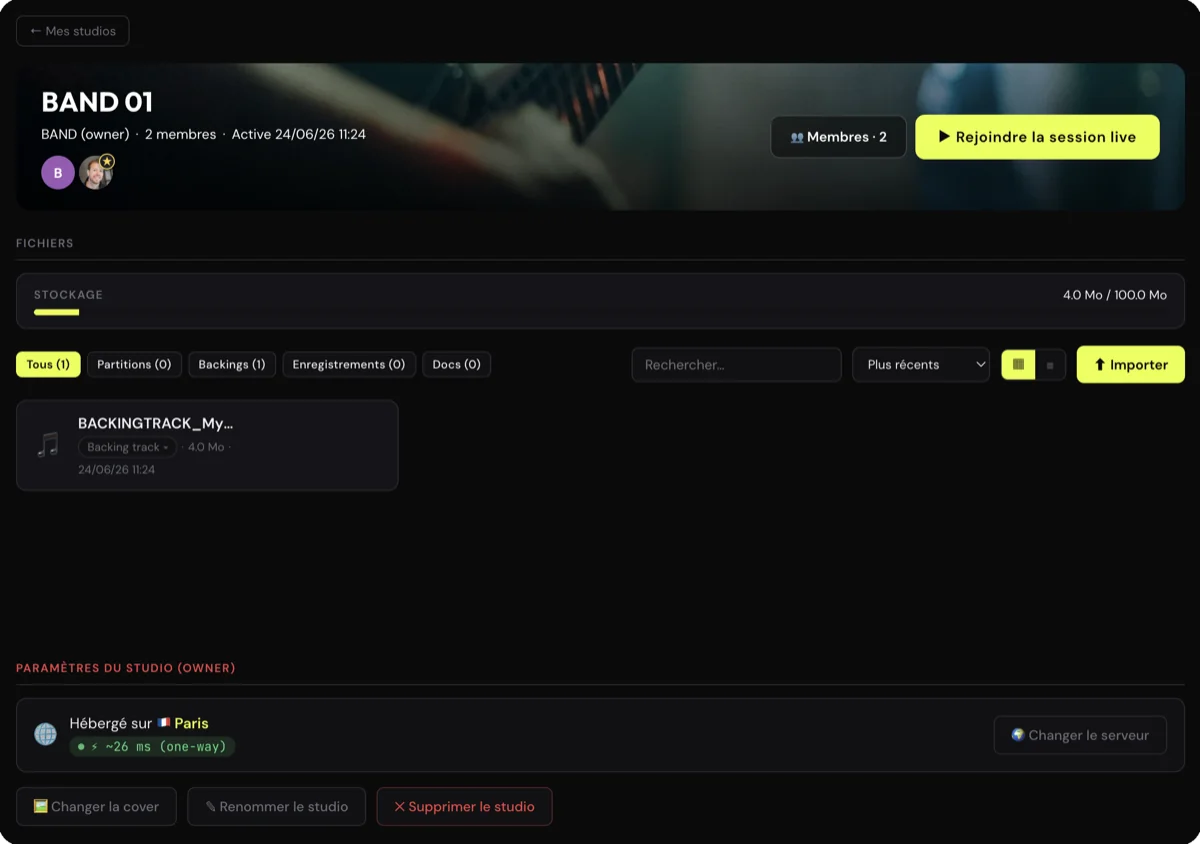
The "Studio" view gathers the studio's files, members and invitations — and lets you join the live session whenever you want.
When the studio's host is on Free, the session counts against their daily 30 minutes (reset at midnight UTC). As a guest of a Duo, Teacher or Band host, you play without limit. To lift the limit on your own studios, upgrade to Duo or higher from Settings → Subscription in the app.
It carries all the sound: your instrument, what you hear, your voice. Install it once (Apple Silicon Mac or Windows), launch it before entering: the
 badge appears at the top right of the app. If it is not running, the studio door tells you and offers to install or launch it; there is no degraded mode. Not done yet? → Install the Audio Engine.
- The 6-digit code does not arrive: check your spam folder, then request a new code. The address must be exactly the one you typed.
- “The Audio Engine is required” at the studio door: install it, or launch it if it is already installed (Jamodio icon in the Dock or the taskbar): the door detects it as soon as it runs.
- “Another tab is using the Audio Engine”: only one Jamodio tab can drive it. Close the other tab, then carry on here.
- The invitation link no longer works: it expires after 7 days (at midnight UTC for a Free temporary studio). Ask the host to copy a new one from “Members”.
- The studio vanished from “My Studios”: an ephemeral studio (Free plan) is purged every night at midnight UTC. Create it again, or upgrade to Duo for a permanent studio.
Still stuck? Write to support@jamodio.com: we reply within 24 hours.
- Account created and email confirmed (OTP code)
- Studio created with a memorable name
- Link copied and sent to musicians
- USB audio interface plugged in → why it matters
- Ethernet plugged in → Ethernet vs Wi-Fi
- Audio Engine installed and running (badge at the top right) → install the Audio Engine
- Wired headphones plugged into the audio interface