Ethernet vs Wi-Fi — what actually changes
- Wi-Fi isn't "too slow" — it's irregular, and that's the problem.
- This irregularity is called jitter: it causes crackling even with good bandwidth. Your bubble sees it: “Wi-Fi” under your network, a buffer that grows, then “Your network is irregular”.
- An Ethernet cable = stable and predictable latency, regardless of network activity.
- Bandwidth has almost no impact — audio uses under 1 Mbps per musician (HD video adds 1 to 2).
The real problem: jitter, not bandwidth
When people think "bad connection", they think bandwidth — download speed. In reality, for playing live music, what matters is the regularity of the connection.
Jitter is the variation in latency from one audio packet to the next. If one packet arrives after 20 ms, the next after 35 ms, the next after 12 ms — even if the average is fine, the sound arrives in uneven chunks. The result: crackling, glitches, brief dropouts.
Each bar = an audio packet. Height represents arrival delay.
The numbers
| Connection type | What your bubble shows | For playing |
|---|---|---|
| Ethernet (cable) | “Ethernet” under your network; a small buffer that does not move | The safe choice |
| Wi-Fi 5 GHz | “Wi-Fi” under your network; a buffer that grows as soon as a neighbour downloads | Possible alone on the network, never guaranteed |
| Wi-Fi 2.4 GHz | Frequent bursts; “Your network is irregular” | Avoid |
| 4G / 5G mobile | “mobile network”; buffer at its maximum, dropouts | Insufficient |
| Active VPN | A detour for every packet: a higher, irregular Network line | Turn off the VPN |
Audio uses under 1 Mbps per musician at maximum quality; HD video adds 1 to 2. Whether you have 30 Mbps or 1 Gbps, it doesn't change latency or jitter. It's regularity that matters, not speed.
Why Wi-Fi is irregular
Wi-Fi is a shared radio technology. Several things disrupt its regularity:
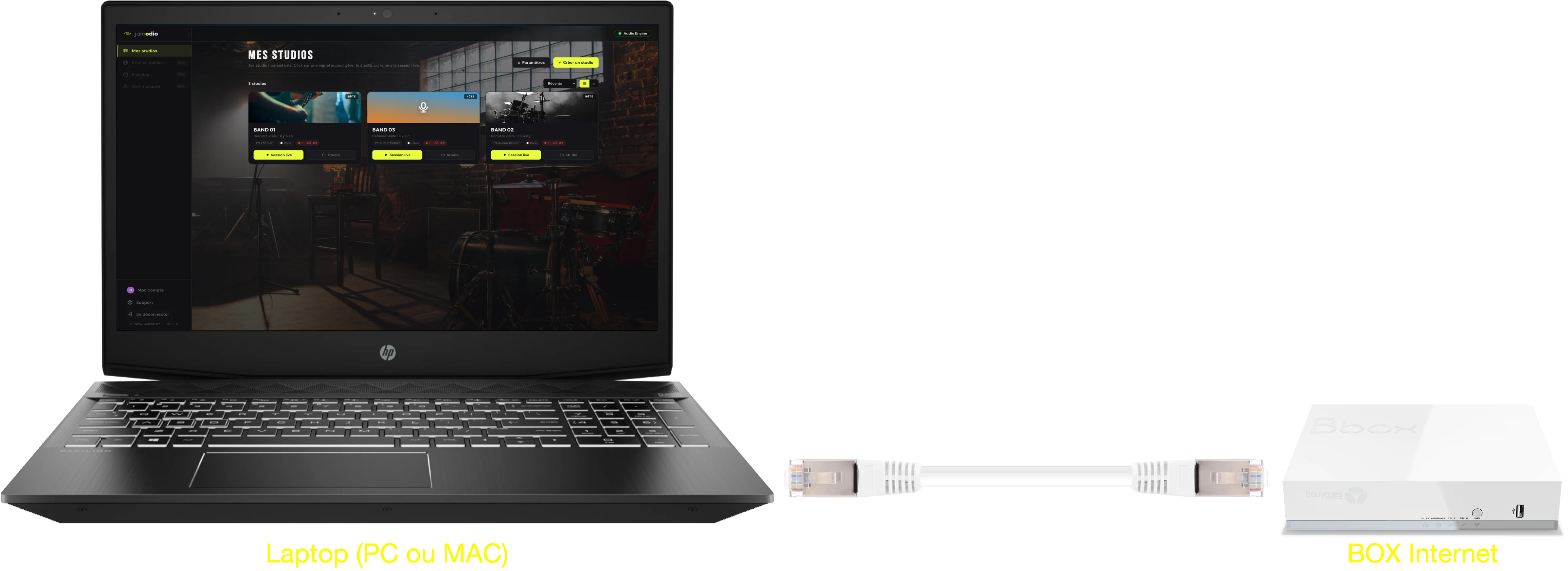
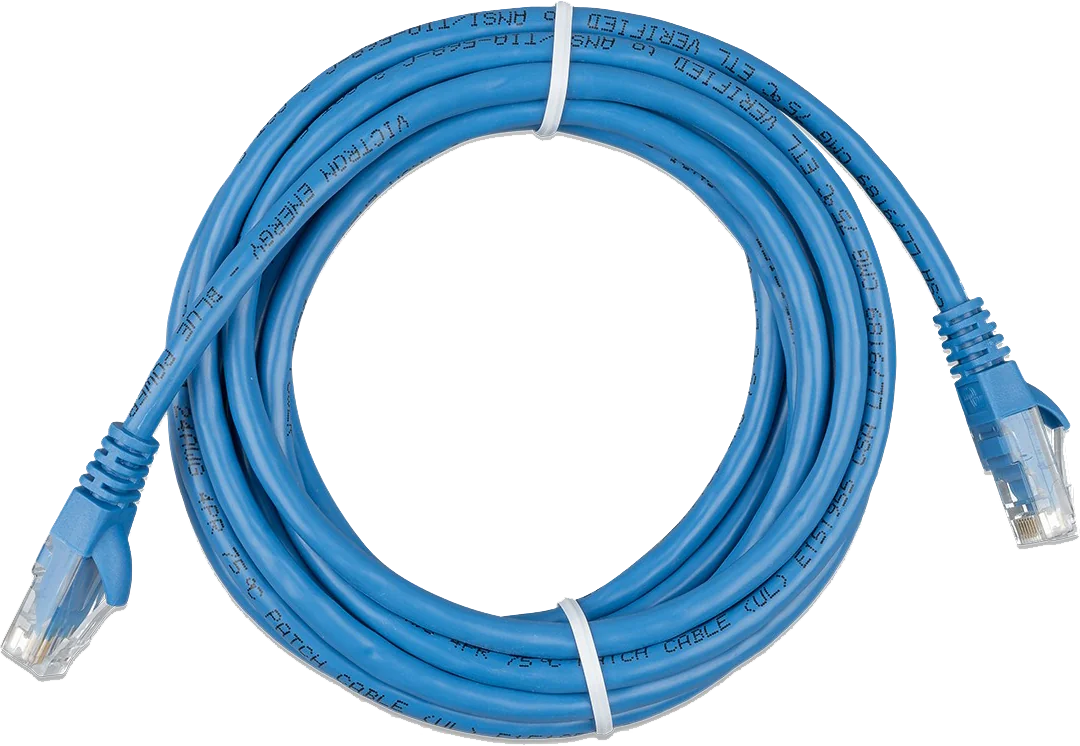
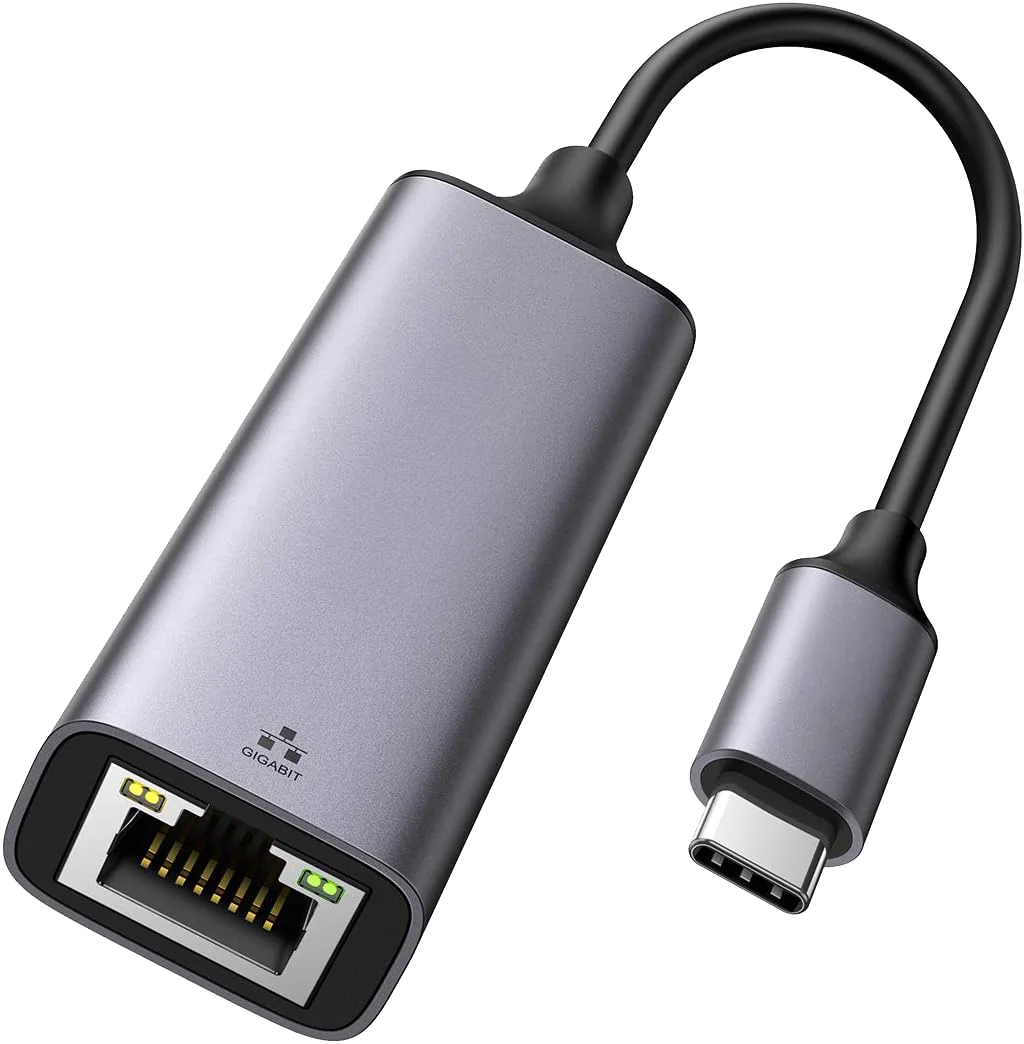
How to plug in via Ethernet
If Ethernet really isn't an option
In some setups (rental apartment, too-short cable, desktop far from the router), Ethernet isn't feasible. In that case:
- Wi-Fi 5 GHz rather than 2.4 GHz — look for networks with "5G" in the name
- Move the computer closer to the router (avoid load-bearing walls)
- Play at off-peak hours (weekday evenings, not Saturday night)
- Turn off other devices downloading (Netflix, idle consoles…)
- Make sure no one else on the network is on a video call
An active VPN sends every audio packet on a detour: the trip gets longer and irregular. In the bubble, the Network line rises and the buffer grows. Turn it off before opening Jamodio.
- The cable is in but the bubble still says “Wi-Fi”: your computer prefers Wi-Fi. Turn it off (macOS: Wi-Fi menu; Windows: Settings → Network) and watch the bubble update.
- The Ethernet port light stays off: faulty cable or adapter. Try another cable, another port on the router.
- On Ethernet, still bursts: look at the chain in the bubble. If the alert is on the other musician's network, it is not at your end. If it is “Your computer is overloaded”, close applications.
- The Network line is high but stable: that is distance; nothing to fix on the cable side.
Still stuck? Write to support@jamodio.com with a screenshot of the bubble: we reply within 24 hours.
- Ethernet cable plugged: computer → router (no extra switch or hub)
- Wi-Fi disabled on the computer once the cable is in
- VPN disabled
- No downloads running (system updates, backups)
- Fiber or DSL? Both work: regularity is what counts, and the bubble shows it to you