Configure your audio interface
- Plug your interface into USB before launching the Audio Engine.
- Input (your instrument): chosen in Jamodio.
- Output (your headphones): chosen in Jamodio too, with the channel pair.
- Set your interface to 48,000 Hz, in the manufacturer's app (Focusrite Control…) or in the system: Jamodio requires it and does not enter below.
- On Windows, your interface's ASIO driver is required too → dedicated guide.
Don't have an external audio interface yet? Start with Why an external audio interface changes everything.
What does a configuration look like?
Here's an example of a complete setup to play on Jamodio: instrument and mic on the audio interface, headphones, a MIDI keyboard or drums, and the network connection over Ethernet.
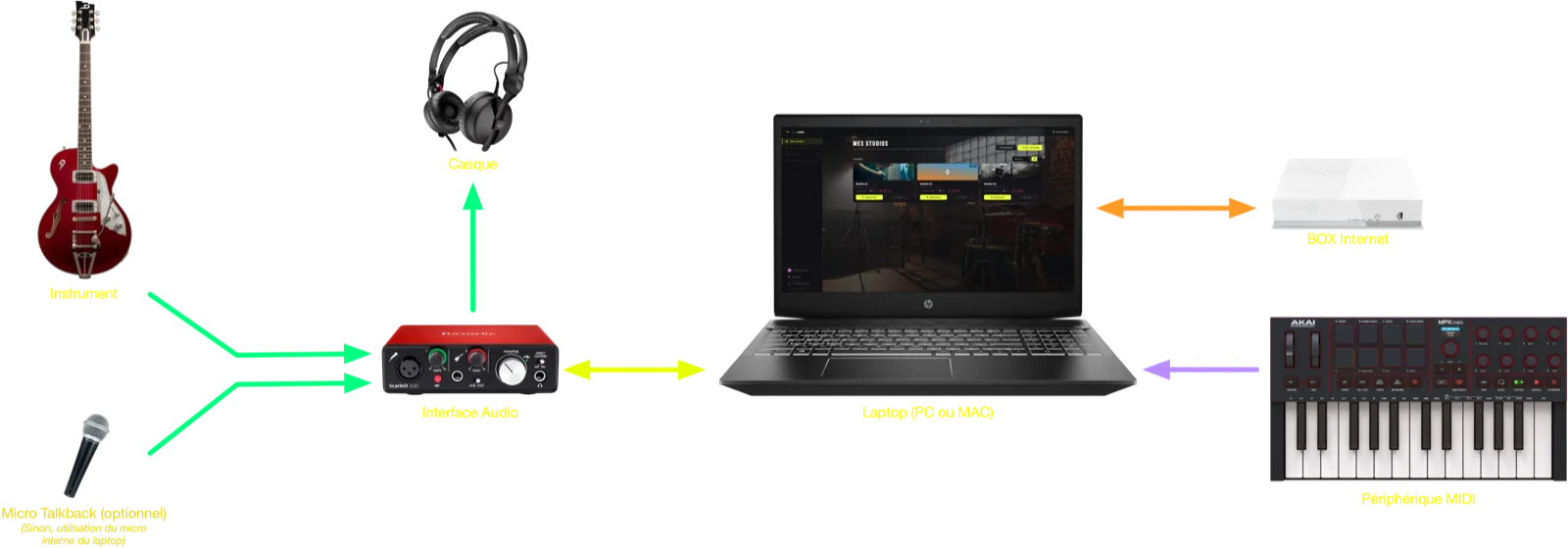
Plug in and select your interface
Plug your interface into USB before launching the Audio Engine. Then two settings, both in Jamodio: input (your instrument) and output (your headphones).
Input — in Jamodio
Open Audio settings inside a studio. Under "Audio input", select your interface: Jamodio confirms the native format and the driver, and you pick the channel (mono) for multi-input interfaces.
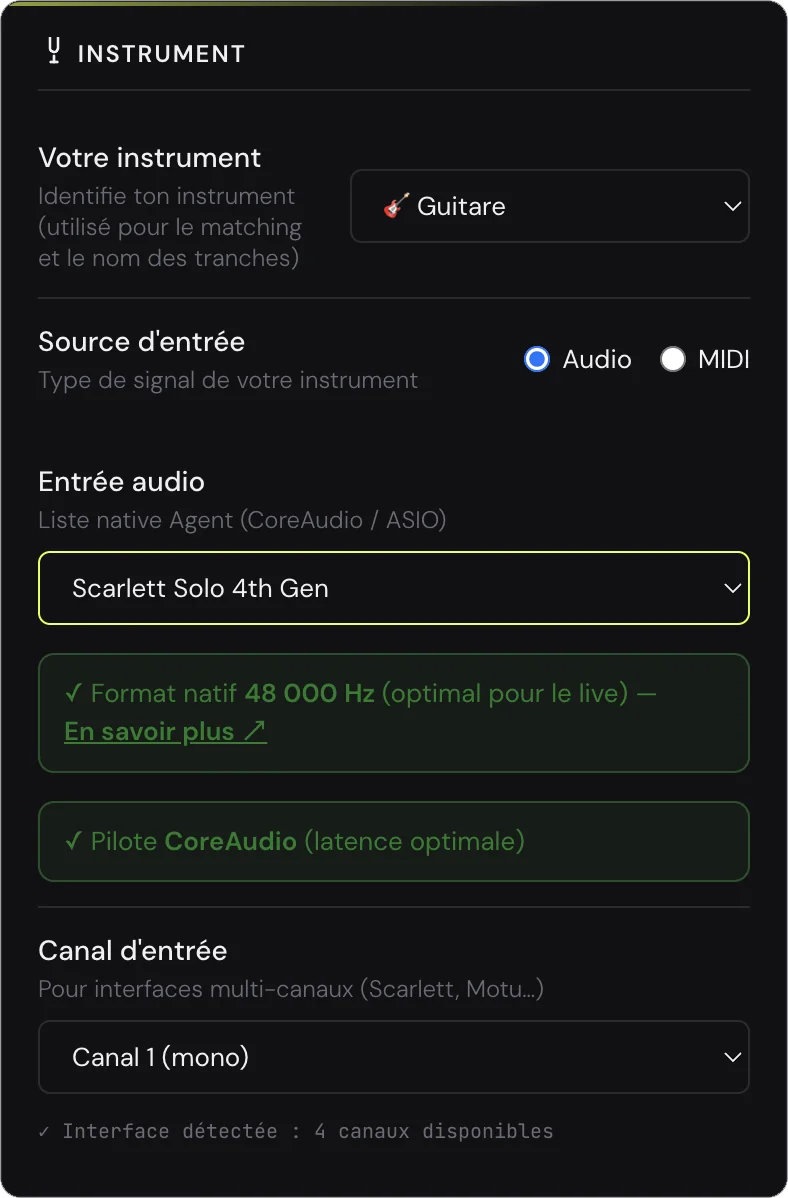
Output — in Jamodio too
Still in Audio settings, section Audio output: pick your Monitoring output (the interface your headphones are plugged into), then the output channel pair (“Outputs 1-2”, “Outputs 3-4”…) if your interface has several. This is where the Audio Engine sends everything you hear: the musicians, the metronome, the backing track, your own monitoring.
On Windows with ASIO, the output uses the same interface as your instrument: plug your headphones into it, only the channel pair is left to choose. The OUTPUT block at the bottom of the master strip shows where you are listening; clicking it reopens this setting.
If you unplug the interface, Jamodio warns you and falls back to the system output until you plug it back in; your choice is kept in Settings.
On Windows: the ASIO driver
On Mac, your interface's drivers install automatically via CoreAudio — nothing to do. On Windows, install your interface's ASIO driver (provided by the manufacturer): without it, Windows goes through its system mixer (WASAPI), and Jamodio refuses to enter: “WASAPI driver — not accepted”. Jamodio picks ASIO on its own when the Audio Engine starts.
Set your interface to 48 kHz
One last often-forgotten point: the sample rate must be set to 48,000 Hz. Jamodio requires it: if your interface runs at 44,100 Hz (the other common value, inherited from audio CDs), it does not enter, and the message tells you where to set it. No hidden resampling, ever: that is time added to your monitoring you would never see anywhere.
Where do you set 48 kHz? It depends on your hardware.
With an external audio interface → the manufacturer's app
On a dedicated interface (Focusrite, Behringer, MOTU, RME…), it's the manufacturer's app that controls the sample rate, not the OS — on Mac as on Windows. Open it and set 48 kHz once and for all. Example with Focusrite Control:
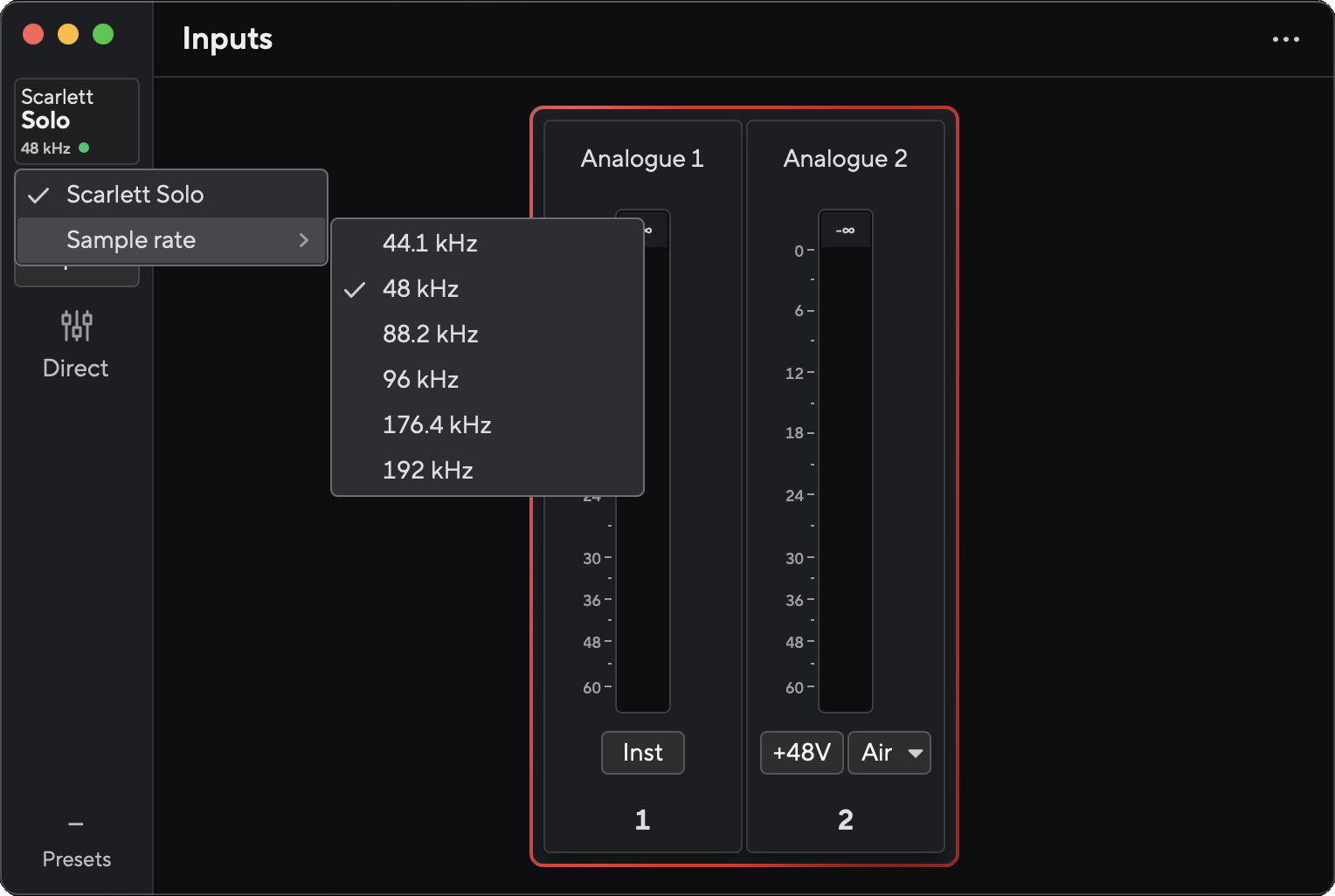
No external interface, on Mac → Audio MIDI Setup
On the built-in card or a USB mic, it's your system that fixes the format. Most devices are already at 48 kHz native on macOS (including the MacBook's mic). To check: open Audio MIDI Setup (in Applications → Utilities), select your device on the left, look at the "Format" field on the right. You should see 48,000 Hz; if it's 44,100, choose 48,000 from the menu.
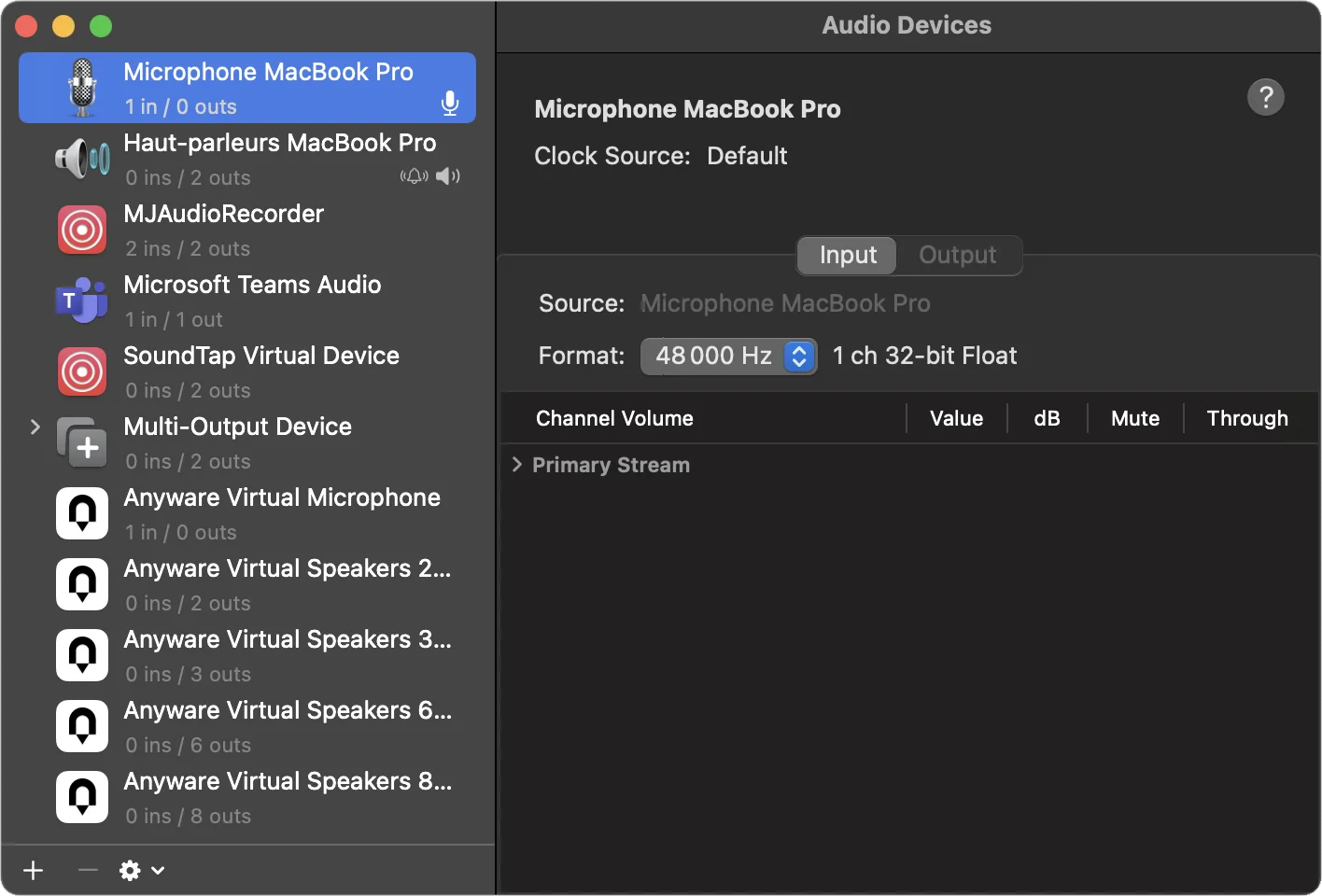
A few low-end USB mics are locked at 44,100 Hz. If Audio MIDI Setup doesn't offer 48,000, the hardware doesn't support it, and Jamodio will not enter with it: you need a device at 48,000 Hz.
No external interface, on Windows → Sound settings
Windows often sets devices to 44,100 Hz by default, especially built-in Realtek HD Audio chipsets. Conversely, some PCs are already at 48 kHz and don't even offer 44.1 — in that case, nothing to do. To check or fix:
Rare but possible on very old cards or low-end USB mics. Jamodio will not enter with it: time to invest in a real external audio interface → which interface should you pick?
Why 48 kHz and not 44.1 kHz?
44.1 kHz is a legacy of the audio CD (Philips/Sony standard from 1980). 48 kHz became the professional standard: it's what pro studios, film, Pro Tools, Logic, Ableton in session mode, and all modern codecs (Opus, AAC) use. Jamodio uses Opus internally, which is optimized for 48 kHz.
If your devices run at 48 kHz, Jamodio processes them directly, with no conversion. If they're at 44.1 kHz, every sample must be converted on the fly — an operation that requires accumulating a small packet of samples before producing the result. That accumulation delay, plus the anti-aliasing filter delay, is hidden latency. Jamodio refuses to add it: it does not enter until everything runs at 48,000 Hz.
- “Your interface is at 44,100 Hz” at the door: the message tells you where to set it (manufacturer's app, Audio MIDI Setup on Mac, Sound settings on Windows). Set it to 48,000 Hz, then join.
- “Your audio output is at 44,100 Hz”: same thing for the output. Jamodio does not enter with an output that resamples quietly.
- “WASAPI driver — not accepted” on Windows: install your interface's ASIO driver, quit and relaunch the Audio Engine with the interface plugged in → ASIO on Windows.
- “Interface not found”: it is unplugged, or plugged into a hub. Straight into the computer, then save Settings again.
- You cannot hear yourself: check the Monitoring output and the channel pair, then the interface's headphone volume (the physical knob).
Still stuck? Write to support@jamodio.com with the name of your interface: we reply within 24 hours.
- USB audio interface plugged in (no USB hub — directly into the computer)
- ASIO driver installed (Windows only) — or the audio interface manufacturer's drivers
- Input selected in Audio settings → Audio input
- Monitoring output and channel pair chosen in Audio settings → Audio output
- 48,000 Hz format set (manufacturer app, or OS input AND output)
- "Native format 48,000 Hz" badge in Audio settings → Audio input
- Test: play a note (or speak into the mic) → you hear yourself in the headphones