ASIO on Windows — the driver that changes everything
- On Windows, Jamodio only accepts your interface's ASIO driver. Without it, Windows goes through its mixer (WASAPI) and entry is refused: “WASAPI driver — not accepted”.
- Jamodio picks ASIO on its own when the Audio Engine starts, if it's installed — nothing to configure.
- Audio settings → Audio input confirms the active driver.
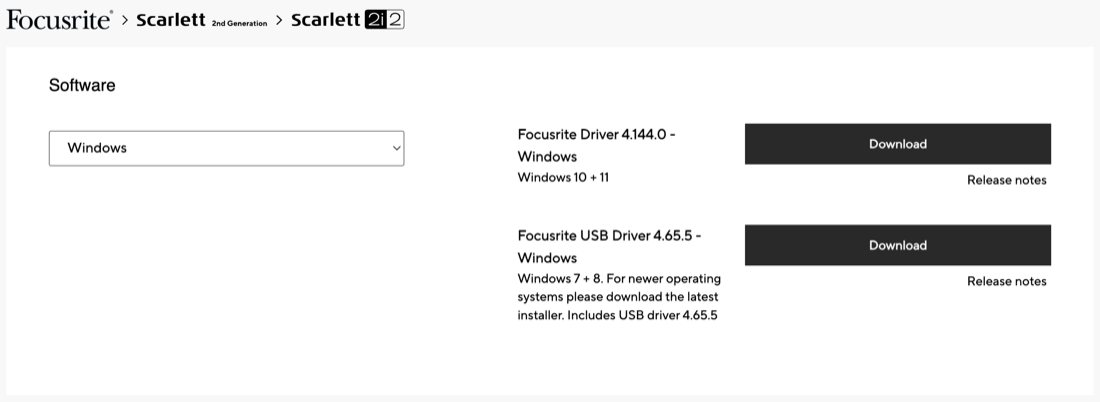
- Install your audio interface maker's driver (Focusrite, Behringer…), then restart the Audio Engine.
The numbers: WASAPI vs ASIO
Those milliseconds would be added to your monitoring and to what the others hear, with nothing showing it: the driver declares them, Jamodio cannot verify them. That is why WASAPI is not accepted, rather than tolerated.
Check what Jamodio is using
The Jamodio Audio Engine detects ASIO automatically at startup: if an ASIO driver exposes your interface, it uses it. Otherwise, it falls back to nothing: at the studio door, a message “WASAPI driver — not accepted” tells you to install your interface's native ASIO driver, and entry waits. With ASIO, Audio settings → Audio input shows “ASIO driver” under your interface.
If the badge does not say “ASIO driver”, follow the steps below.
Install the ASIO driver
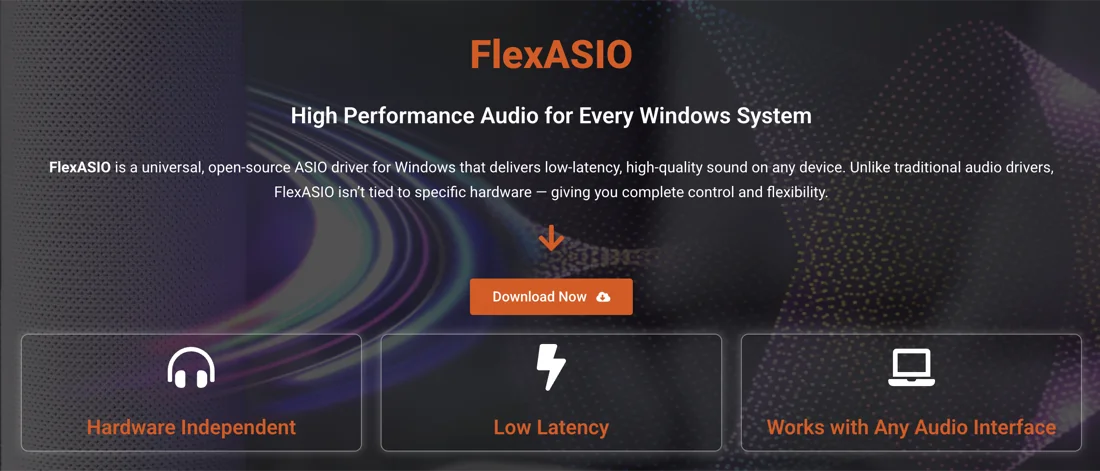
If you're playing on the PC's built-in sound card while waiting for a real interface, FlexASIO (modern, open-source — “Download Now” button) or ASIO4ALL provide a generic ASIO driver. Jamodio warns you at the door: these drivers can resample silently (44.1 ↔ 48 kHz) and produce artefacts it cannot detect. Only to get by; to understand why an external audio interface remains essential: Why an audio interface?
Common pitfalls
- “WASAPI driver — not accepted” still there: the ASIO driver is not installed for this interface, or the Audio Engine was not relaunched afterwards. Really quit it (taskbar icon → Quit), interface plugged in, relaunch.
- “Can't open your interface in ASIO”: another application holds it (DAW, OBS, Discord in exclusive mode). Close it, then try again.
- “Your interface is at 44,100 Hz”: set 48,000 Hz in the manufacturer's panel, then join → steps.
- You are using ASIO4ALL or FlexASIO: Jamodio warns you at the door. It works to get by, but these drivers can resample silently: if the sound is odd, that is where. The manufacturer's driver fixes it.
- Over Remote Desktop: a remote session's audio is not a real interface. Play from the machine itself.
Still stuck? Write to support@jamodio.com with the names of your interface and driver: we reply within 24 hours.
- Vendor ASIO driver installed (FlexASIO or ASIO4ALL only to get by)
- Interface plugged in before launching the Audio Engine
- “ASIO driver” confirmed in Audio settings → Audio input
- Interface set to 48,000 Hz
- No DAW/OBS open hogging the interface during the session