ASIO on Windows — the driver that changes everything
4 min read·Beginner
The gist in 10 seconds
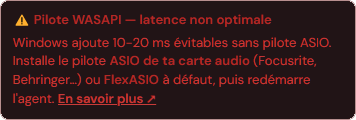
Without an ASIO driver, Windows routes audio through its system mixer (WASAPI): 10 to 20 ms of avoidable latency.
Jamodio picks ASIO automatically when the Audio Engine starts, if it's installed — nothing to configure.
The badge in Audio settings tells you which one is active: green = ASIO, orange = WASAPI.
Install your audio interface maker's driver (Focusrite, Behringer…), then restart the Audio Engine.
The numbers: WASAPI vs ASIO
WASAPI (Windows default)
+10 – 20 ms
The system mixer that serves every consumer app (Chrome, Spotify, Zoom). Roughly a 10 ms floor that can't be compressed in shared mode — an OS limitation, not a Jamodio choice.
ASIO
2 – 3 ms
Direct access to the audio interface, provided by its maker. Bypasses the Windows mixer entirely. It's been the standard in studios and DAWs for 25 years.
For reference, the target total latency of a well-tuned Jamodio session is 20 to 40 ms one-way (note→ear). Staying on WASAPI eats up a quarter to a half of that budget on its own — for nothing.
Check what Jamodio is using
The Jamodio Audio Engine detects ASIO automatically at startup: if an ASIO driver exposes your interface, it uses it; otherwise it falls back to WASAPI and tells you. Open Audio settings inside a studio — the badge under the input selector shows the active mode:
Orange = WASAPI, to fixGreen = ASIO, you're good
If the badge is orange, follow the steps below.
Install the ASIO driver
1
Download your interface's official driver
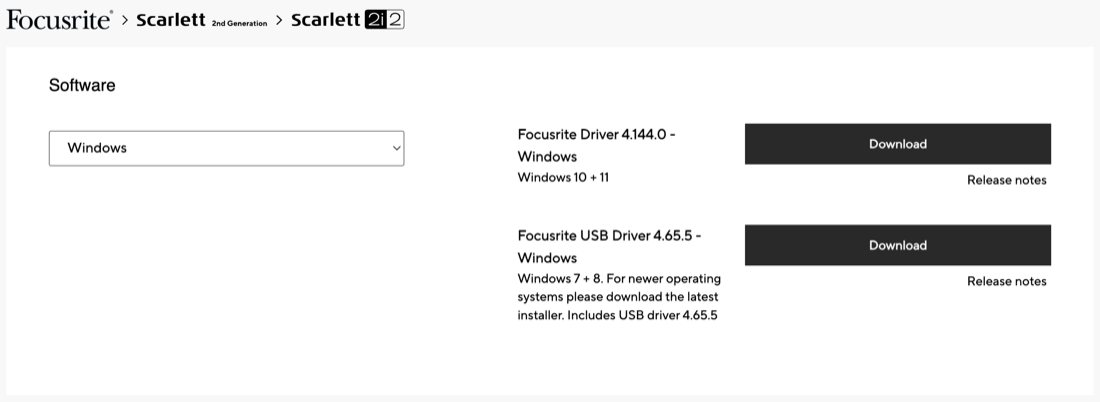
From the maker's website: Focusrite (Focusrite Control), Behringer, PreSonus (Universal Control), Steinberg, MOTU… Pick the Windows 10 / 11 version. Always the official driver — that's what contains the ASIO tuned for your hardware.
Example: the Focusrite (Scarlett) driver download page
2
Install it, then restart the computer
The installer asks for admin rights. Restarting makes sure the driver is properly loaded.
3
Restart the Jamodio Audio Engine
The ASIO/WASAPI choice happens when the Audio Engine starts: quit it (Jamodio icon in the taskbar → Quit, or the “Quit agent” button in its window) then relaunch it. Interface plugged in BEFORE relaunching.
4
Check the badge
Audio settings → green “ASIO driver” badge. That's it: Jamodio selects it on its own, there's nothing to set.
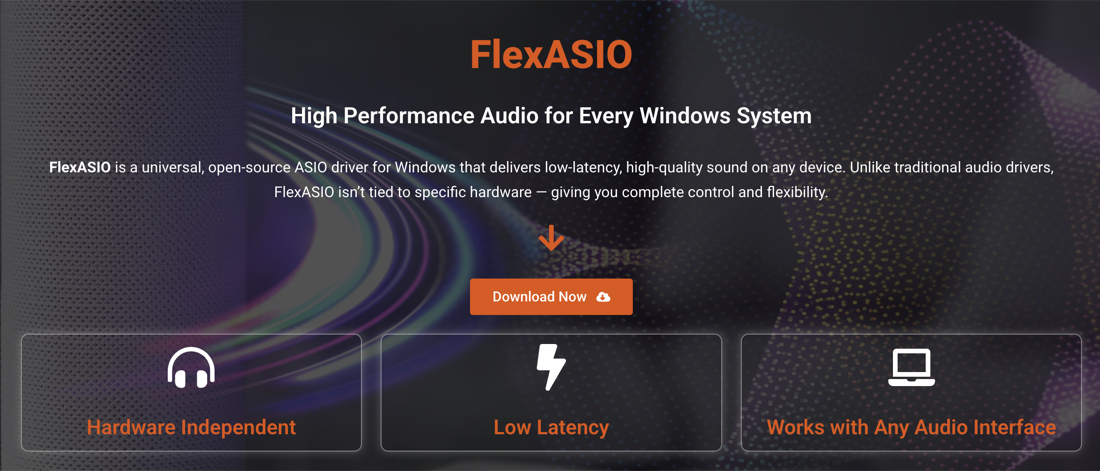
No external audio interface? FlexASIO or ASIO4ALL.
If you're playing on the PC's built-in sound card while waiting for a real interface, FlexASIO (modern, open-source — “Download Now” button) or ASIO4ALL provide a generic ASIO driver. Not as good as a vendor driver, but better than WASAPI. To understand why an external audio interface is still essential: Why an audio interface?flexasio.com → “Download Now” (generic ASIO driver, no external interface)
Common pitfalls
!
“Can't open your interface in ASIO”
ASIO allows only one application at a time. If your DAW (Ableton, FL Studio…), OBS or another audio app is already holding the interface, Jamodio can't open it — close the other app and try again.
!
Interface at 44,100 Hz
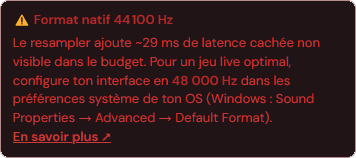
ASIO installed but the format badge is orange? Your interface runs at 44.1 kHz and the resampling adds ~29 ms of hidden latency. Set it to 48,000 Hz: detailed steps →
44,100 Hz: ~29 ms hidden48,000 Hz: optimal
!
The badge stays orange after install
The choice happens when the Audio Engine starts: make sure you actually quit and relaunched it (not just closed the window), interface plugged in. If it persists, check in the driver's panel (e.g. Focusrite Control) that the interface is detected.
ASIO checklist
Vendor ASIO driver installed (or FlexASIO as a fallback)
Interface plugged in before launching the Audio Engine
Green “ASIO driver” badge in Audio settings
Interface set to 48,000 Hz
No DAW/OBS open hogging the interface during the session