Your audio plugins, right on your channel

Why it's rare
Other remote rehearsal platforms are, at best, excellent at transporting your audio between musicians, but they stop there. If you want to add a reverb on your voice or an amp simulator on your guitar, you have to fire up a DAW on the side, set up complicated audio routing (Loopback, BlackHole, IAC…) and struggle to sync everything.
Jamodio integrates native audio plugins directly — AU on macOS and VST3 on Windows — into the studio mixer. You load any plugin already installed on your machine, you play, and your musicians immediately hear the processed sound. Just like in a real studio — but with your band 500 km away.
Jamodio does not ship any plugin : you bring your own collection (Logic, AmpliTube, Valhalla, Surge XT, Native Instruments…), and Jamodio handles getting them to work online with your band.
- Load an AU (macOS) or VST3 (Windows) plugin straight on your channel in the mixer.
- Your musicians hear the sound after processing (reverb, amp, comp…).
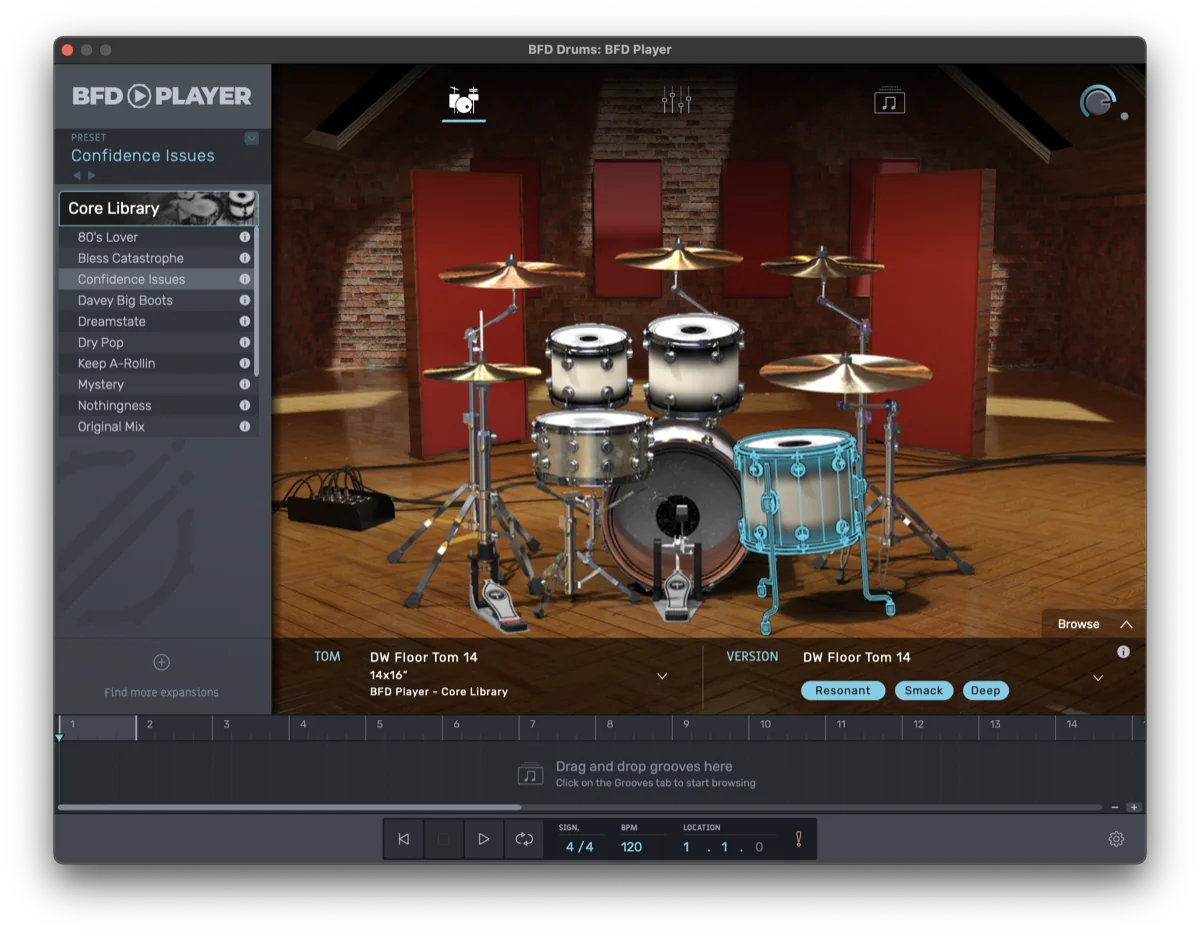
- MIDI instrument plugins (piano, virtual drums…) supported via a USB MIDI keyboard or the built-in virtual keyboard.
- The plugin runs inside the Audio Engine, on your machine. If it adds latency, your bubble says so (“Avoidable: … come from your plugin”).
3 use cases that change everything
Reverb on your singing voice
Your vocal mic plugged in as your instrument, a hall or plate reverb on it: the others hear you as if you were singing in a real room, more natural than a dry close-mic voice. Useful for backing vocalists in remote rehearsals.
Amp simulator on your DI guitar
You plug your guitar in directly (without a physical amp) into your audio interface. Jamodio inserts a virtual amp sim: your musicians hear a Marshall, Fender, Mesa Boogie… chosen inside the plugin. Without bringing your stack.
Virtual piano / drums via MIDI
Connect your USB MIDI keyboard (or a drum pad). Jamodio routes it to a virtual piano or sampler. You play, the sound is generated by the plugin and sent to your musicians. Ideal for the pianist without their piano on hand, or the drummer rehearsing on pads.
Most plugins (reverbs, EQ, compressors, most amp sims) process the audio block within the block itself: nothing more in your bubble. Those that declare a latency of their own too large for live playing (more than 128 samples) are greyed out in the picker; those that declare a little show up in your bubble under “Avoidable”, with bypass as the remedy.
Procedure — 3 minutes to add your first plugin

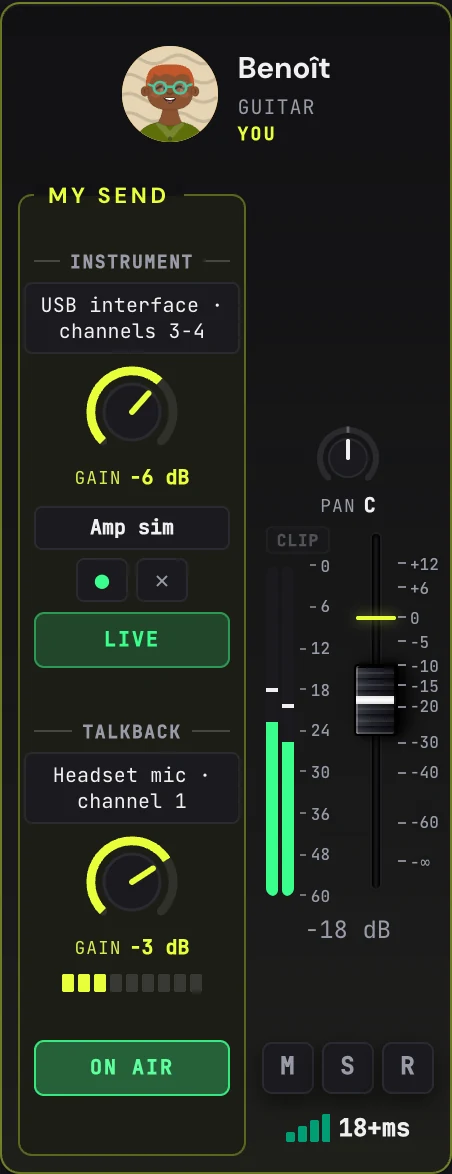
+ FX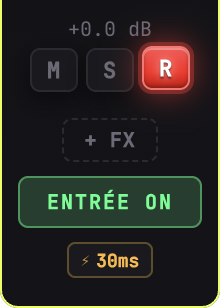
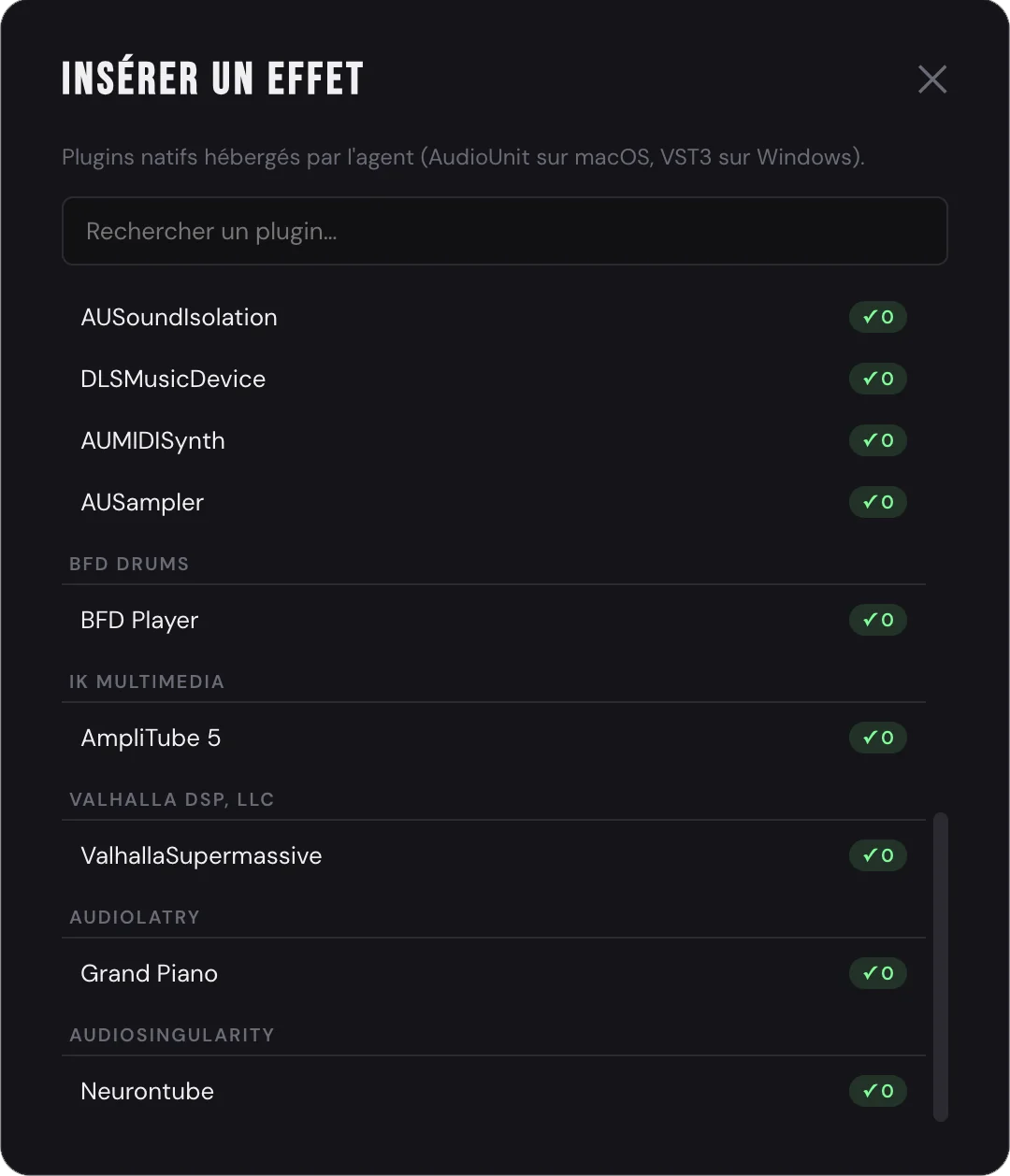
✓ 0 = the plugin adds
no delay; an ✕ flags more than 128 samples, and the app advises against it
in a session. Click the plugin → the modal closes. Your strip now shows the
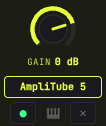
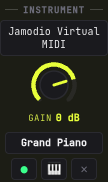
plugin name, with ● (bypass), the keyboard and ✕ (remove) below it,
and the processed sound immediately flows to your musicians and your headphones.
At the top of the window, two buttons: Inventory (“Inventory N new plugins”) opens each plugin Jamodio has never seen once, to learn what it is and what it declares. Some ask for their licence at that point: confirm or close their window, that is normal. Scan (“Rescan all”) reopens every plugin, including those set aside because they crashed the detection: useful after an update or a repair.
Special case: instrument plugins via MIDI
For instrument plugins (= virtual pianos, virtual drums, synths, samplers), Jamodio automatically switches your input source to MIDI mode when you load that type of plugin. You then have two options to play:
- USB MIDI keyboard — plug it in, it appears in the MIDI device list under My Settings → Input source. Play, the plugin responds, your musicians hear it.
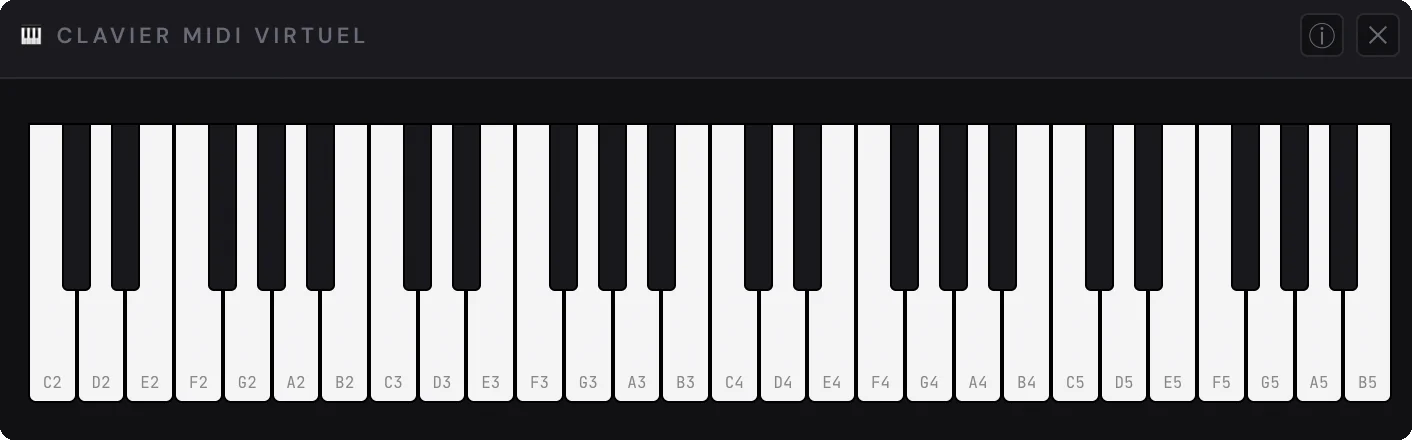
- Built-in virtual keyboard — no USB keyboard? Click the button on your channel to open a 4-octave mini keyboard (C2-C6). Mouse click, glissando, or physical keyboard shortcuts (Z X C V for white keys, S D G for black keys).
macOS : any AudioUnit v2 or v3 plugin installed in
/Library/Audio/Plug-Ins/Components/ or
~/Library/Audio/Plug-Ins/Components/ is listed automatically.
Windows : any VST3 plugin installed in
C:\Program Files\Common Files\VST3\ or
%LOCALAPPDATA%\Programs\Common\VST3\ is listed automatically.
Proprietary plugins (AmpliTube, TONEX, Surge XT, Valhalla, Logic Pro instruments…)
are recognized if installed and activated on the machine — Jamodio doesn't ship any
plugin, you bring them yourself.
Supported formats
One format per system, the one your system opens natively: Audio Units on macOS, VST3 on Windows.
 macOS supported
 Windows supported
Known limitations
- The plugin runs inside the Audio Engine, on your machine: it carries the sound, and it hosts the plugin.
- One plugin per channel. An effect on your instrument, or a virtual instrument instead; no effect chain.
- VST2 (.dll) and AAX not supported on Windows — VST3 only (VST2 is deprecated by Steinberg, AAX is Pro Tools-specific). If your instruments don't show up, make sure they're installed as VST3.
- Your plugin does not appear in the list: it is not installed in the right format (AU on Mac, VST3 on Windows; no VST2 or AAX), or it crashed the scan and was set aside. In the plugins window, “Rescan all” reopens every plugin, including those set aside: licence windows may pop up, confirm them.
- The plugin is greyed out: it declares too much latency for live playing. Look for a “low latency” or “live” setting in the plugin, or pick another one.
- Your bubble shows “Avoidable: … come from your plugin”: the plugin adds latency it declares. Bypass (●) removes it; time to compare.
- Sound drops out since the plugin was loaded: look at the bubble: if “Your computer is overloaded”, the plugin is too heavy for your computer. Lighten it or remove it.
- A plugin was cut “for safety”: it produced an abnormal output; Jamodio protects your ears. Remove it, then reload it.
Still stuck? Write to support@jamodio.com with the plugin's name and version: we reply within 24 hours.
Launch Jamodio, check that your Audio Engine is active, and click + FX on your channel. That's it.
Open Jamodio →