Download the agent from jamodio.com/app — the button detects your system.
Follow the screenshots below: Mac (drag → allow) or Windows (installer).
The agent isn't signed yet: your OS shows a warning, you click through it. Just once.
When the Jamodio icon shows up (macOS Dock / Windows system tray), you're done.
Download the agent
Open jamodio.com/app and click the Audio Engine download button. The site auto-detects your system and offers the right file: a .dmg on Mac (Apple Silicon), an .msi on Windows. Once downloaded, follow your section:
During install, your system will warn you that the app comes from an unverified developer (Apple Developer ID on Mac, Authenticode on Windows). That's expected: the Jamodio agent isn't signed yet. Signing is something we handle later, so it doesn't hold up getting the app running.
You only go through this once: your OS then remembers your choice, and the warning won't come back — not on later launches, not on automatic updates.
Not dangerous. These warnings apply to any unsigned app and don't mean the agent is harmful. The agent's code is public and inspectable on GitHub — you can check exactly what the binary you're installing does.
Install on Mac
On recent macOS (Sequoia 15+), the approval goes through System Settings. Here's the full path, from the .dmg to a running agent:
1
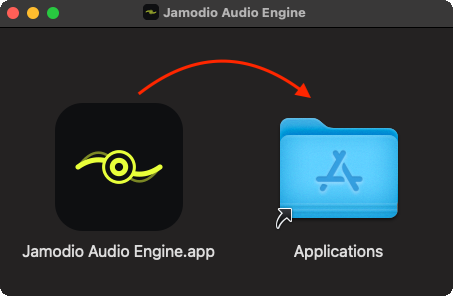
Drag the app into Applications
Open the downloaded .dmg, then drag Jamodio Audio Engine onto the Applications folder.
2
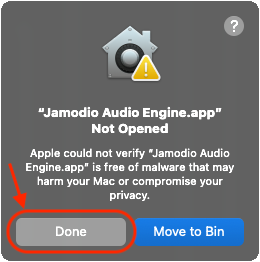
On first launch, click “Done”
Double-click the app from Applications. macOS blocks it (“Not Opened”). Click Done — not Move to Bin.
3
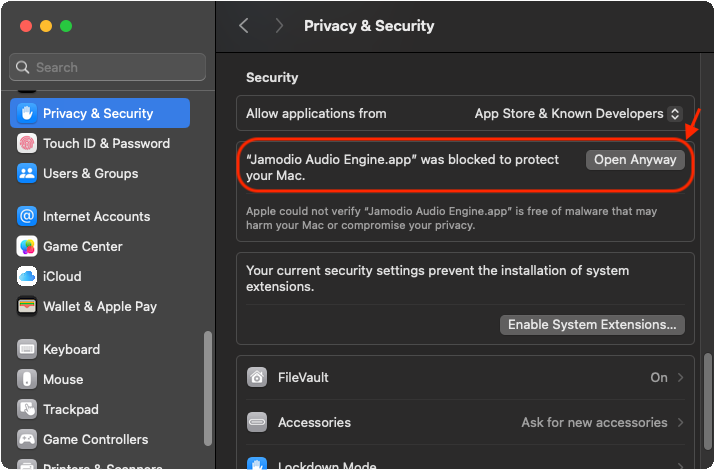
System Settings → Privacy & Security → “Open Anyway”
Scroll to the Security section: the message “…was blocked to protect your Mac” appears. Click Open Anyway.
4
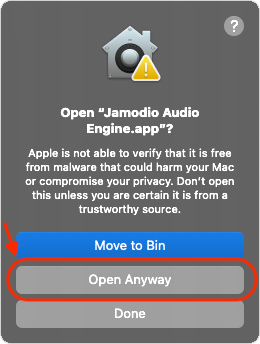
Confirm “Open Anyway”
A confirmation dialog opens. Click Open Anyway again.
5
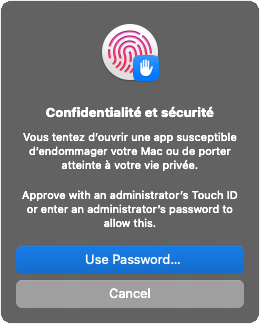
Confirm with Touch ID or your password
macOS asks for admin authentication. Use Touch ID or your Mac password.
6
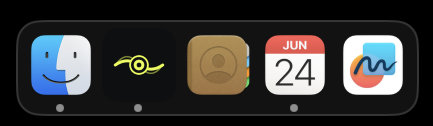
Done — the Jamodio icon appears in the Dock
The agent now runs in the background. You won't see that warning again.
Install on Windows
Run the downloaded .msi. The install takes a few clicks:
1
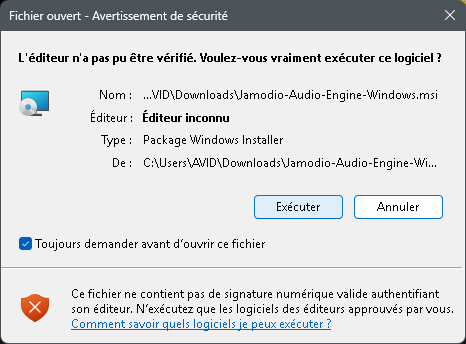
Security warning → click “Run”
Windows flags an unknown publisher. Click Run. (If instead you see the blue “Windows protected your PC” screen: click “More info”, then “Run anyway”.)
2
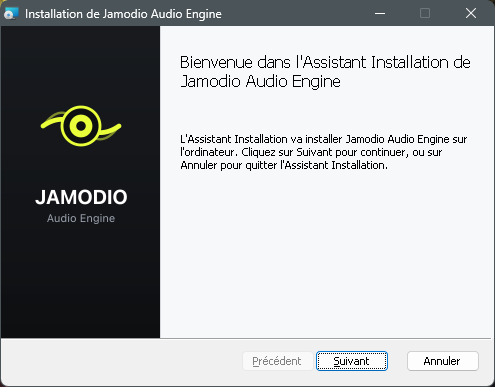
Setup wizard → “Next”
The Jamodio Audio Engine installer welcome screen appears.
3
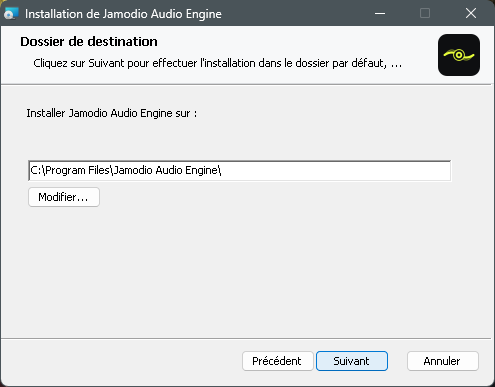
Keep the default folder → “Next”
Leave C:\Program Files\Jamodio Audio Engine\ unless you have a reason to change it.
4
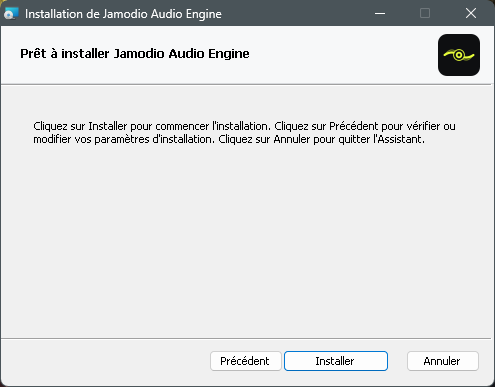
Click “Install”
The wizard copies the files. It takes a few seconds.
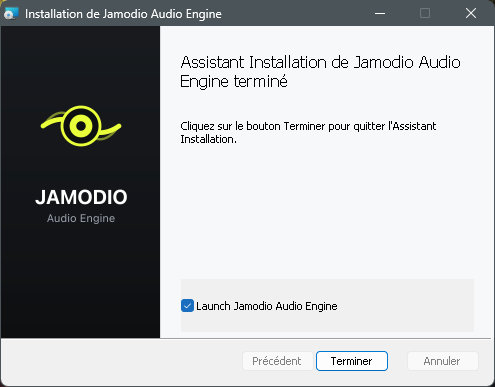
The agent starts automatically once the install completes.
6
Check the icon in the system tray
The Jamodio icon appears bottom-right (notification area). Click the ^ arrow if it's hidden.
Third-party antivirus (Norton, McAfee, Avast…): it may raise its own alert, separate from Windows. Open your antivirus and add Jamodio Audio Engine to its exclusions / trusted programs.
Check that the agent is running
Once launched, the agent runs in the background. Three ways to confirm it:
Mac: Jamodio icon in the Dock (and in the menu bar, top right).
Windows: Jamodio icon in the system tray (bottom right, ^ arrow for hidden icons).
In the studio: a green “HD · Audio Engine active” banner shows up, and Audio settings reads “Audio Engine detected”. That's your sign you're running at minimal latency.
If it's still stuck
!
Mac: force it via Terminal
If the “Open Anyway” button never shows, manually remove the “quarantine” flag macOS puts on downloaded files, then relaunch the app: