Install the Jamodio Audio Engine
- Download the Audio Engine from jamodio.com/app — the button detects your system.
- Follow the screenshots below: Mac (drag → allow) or Windows (installer).
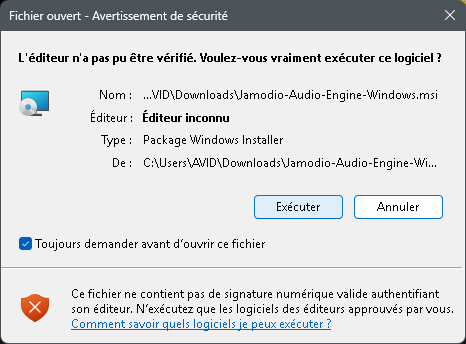
- The Audio Engine isn't signed yet: your OS shows a warning, you click through it. Just once.
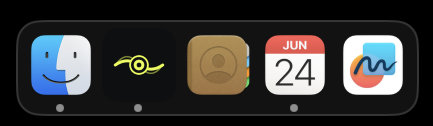
- When the Jamodio icon shows up (macOS Dock / Windows system tray), you're done.
Download the Audio Engine
Open jamodio.com/app and click the Audio Engine download button. The site auto-detects your system and offers the right file: a .dmg on Mac (Apple Silicon), an .msi on Windows. Once downloaded, follow your section:
The “unsigned app” warning, explained
During install, your system will warn you that the app comes from an unverified developer (Apple Developer ID on Mac, Authenticode on Windows). That's expected: the Jamodio Audio Engine isn't signed yet. Signing is something we handle later, so it doesn't hold up getting the app running.
You only go through this once: your OS then remembers your choice, and the warning won't come back — not on later launches, not on automatic updates.
Install on Mac
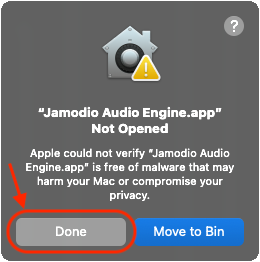
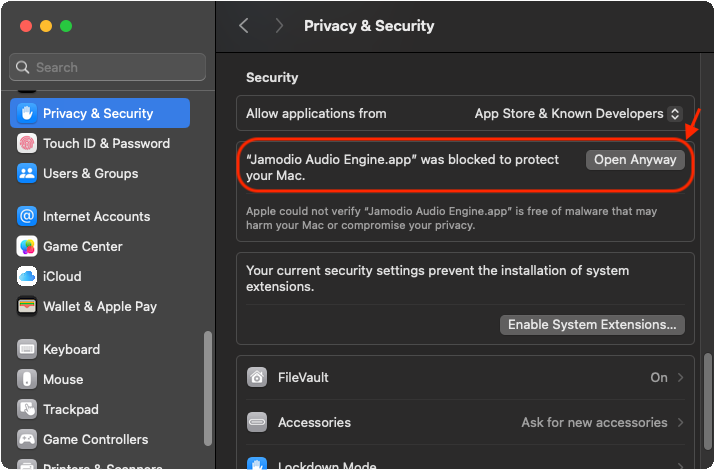
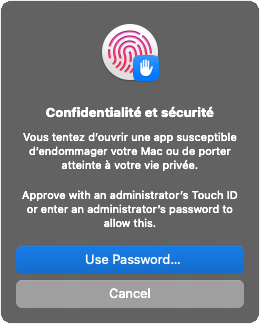
On recent macOS (Sequoia 15+), the approval goes through System Settings. Two paths lead to the same result: the fast one below, or the step-by-step walkthrough with screenshots.
macOS flags everything that comes from the internet as “quarantined”; that flag is what triggers the warning. You can remove it yourself: the app then opens normally, without going through System Settings.
- Open the
.dmgand drag Jamodio Audio Engine into Applications. - Open Terminal (Spotlight → “Terminal”), paste this line, then press Return:
No password is asked: the app is yours, you just copied it. Then double-click it from Applications — it starts straight away. If Terminal answers Operation not permitted, run it again with sudo in front.
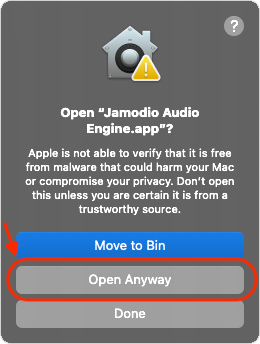
Rather not touch Terminal? Here's the full walkthrough in pictures, from the .dmg to a running Audio Engine:
.dmg, then drag Jamodio Audio Engine onto the Applications folder.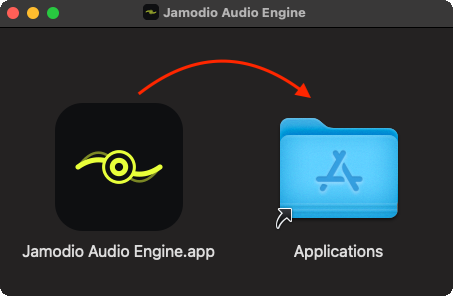
Install on Windows
Run the downloaded .msi. The install takes a few clicks:
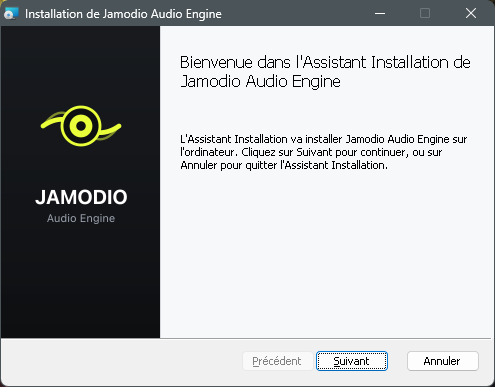
C:\Program Files\Jamodio Audio Engine\ unless you have a reason to change it.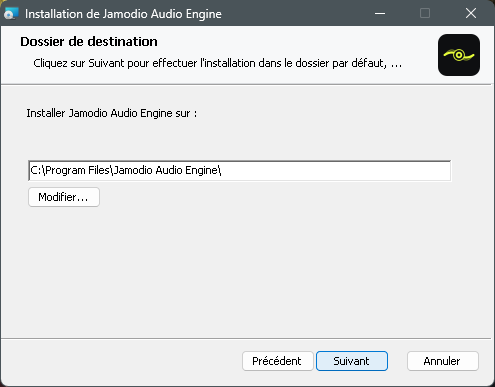
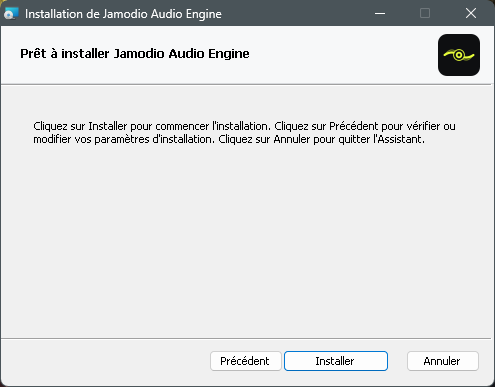
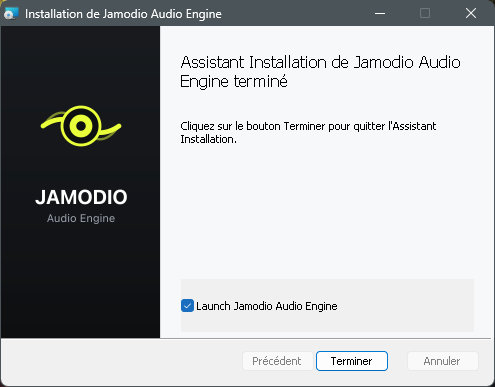

Jamodio Audio Engine to its exclusions / trusted programs.
Check that the Audio Engine is running
Once launched, the Audio Engine runs in the background. Three ways to confirm it:
- Mac: Jamodio icon in the Dock (and in the menu bar, top right).
- Windows: Jamodio icon in the system tray (bottom right, ^ arrow for hidden icons).
- In the studio: the Audio Engine badge shows in the studio bar with its dot lit (on hover: “Audio Engine active”). That's your sign you're running at minimal latency.
If it's still stuck
sudo in front.- Audio Engine downloaded from Jamodio (not a third-party link)
- Mac: app dragged into Applications → System Settings → “Open Anyway” → Touch ID
- Windows: “Run” → wizard → “Install” → “Finish”
- Antivirus: Jamodio added to exclusions if needed
- Jamodio icon visible (macOS Dock / Windows system tray)
- Audio Engine badge, dot lit, in the studio bar