Audio plugins on your channel — Jamodio's unique feature
Why it's rare (or unique)
Other remote rehearsal platforms (JamKazam, JamTaba, SonoBus, FarPlay…) are excellent at transporting your audio between musicians, but they stop there. If you want to add a reverb on your voice or an amp simulator on your guitar, you have to fire up a DAW on the side, set up complicated audio routing (Loopback, BlackHole, IAC…) and struggle to sync everything.
Jamodio integrates native audio plugins directly — AU on macOS and VST3 on Windows — into the studio mixer. You load any plugin already installed on your machine, you play, and your musicians immediately hear the processed sound. Just like in a real studio — but with your band 500 km away.
Jamodio does not ship any plugin : you bring your own collection (Logic, AmpliTube, Valhalla, Surge XT, Native Instruments…), and Jamodio handles getting them to work online with your band.
- Load an AU (macOS) or VST3 (Windows) plugin straight on your channel in the mixer.
- Your musicians hear the sound after processing (reverb, amp, comp…).
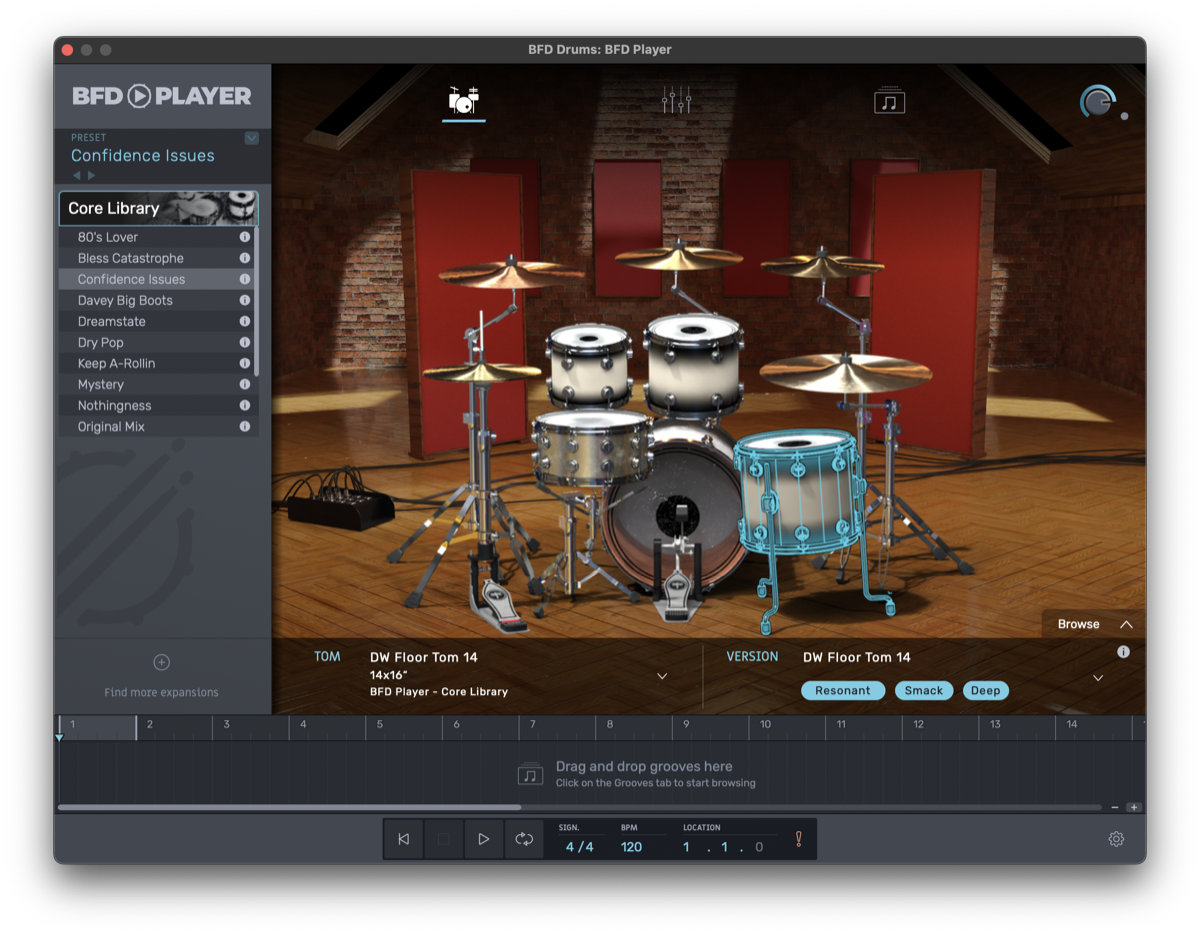
- MIDI instrument plugins (piano, virtual drums…) supported via USB keyboard or virtual port.
- Requires Audio Engine (agent) mode — ~25 ms ear-to-ear latency unchanged.
3 use cases that change everything
Reverb on the talkback voice
A hall or plate reverb adds ambience to your voice — others hear you as if you were singing in a real room, more natural than a dry, close-mic'd voice. A must for remote choir rehearsals.
Amp simulator on your DI guitar
You plug your guitar in directly (without a physical amp) into your audio interface. Jamodio inserts a virtual amp sim: your musicians hear a Marshall, Fender, Mesa Boogie… chosen inside the plugin. Without bringing your stack.
Virtual piano / drums via MIDI
Connect your USB MIDI keyboard (or a drum pad). Jamodio routes it to a virtual piano or sampler. You play, the sound is generated by the plugin and sent to your musicians. Ideal for the pianist without their piano on hand, or the drummer rehearsing on pads.
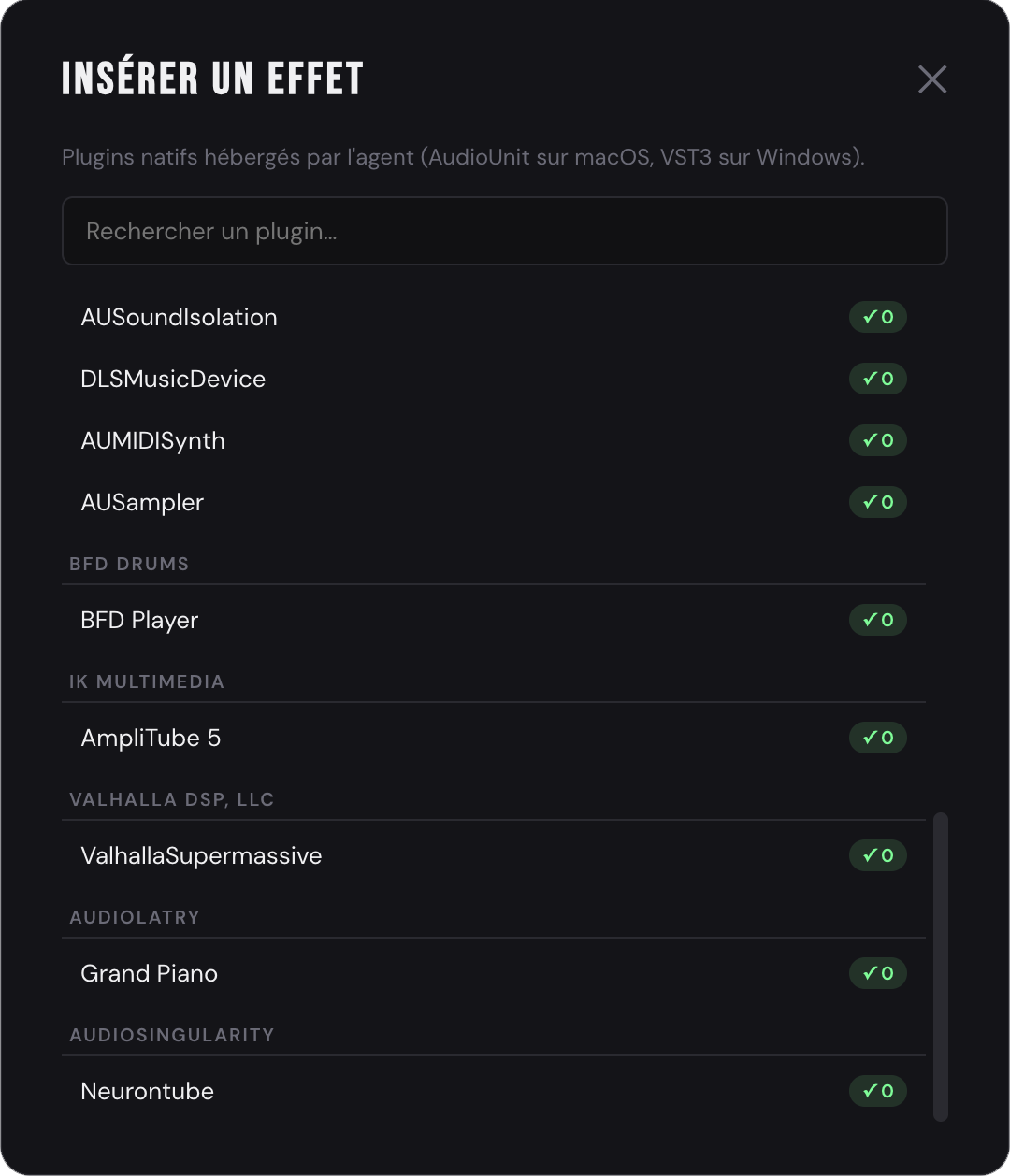
Most plugins (reverbs, EQ, Apple native comp, AmpliTube in basic mode) process the audio block in under 1 ms per buffer — invisible in the total ear-to-ear latency (~25 ms). Jamodio automatically rejects plugins that are too slow (intrinsic latency > 64 samples) by greying them out in the picker.
Procedure — 3 minutes to add your first plugin

+ FX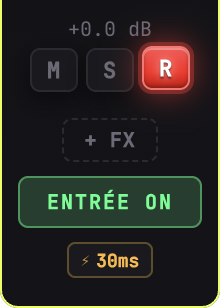
✓ 0 = zero latency, ideal for
live; an ✕ flags a plugin that's too latent (> 64 samples), not recommended
in a session. Click the plugin → the modal closes. Your channel now shows
[● bypass] [Plugin name] [✕ remove] and the processed sound immediately flows
to your musicians and your headphones.
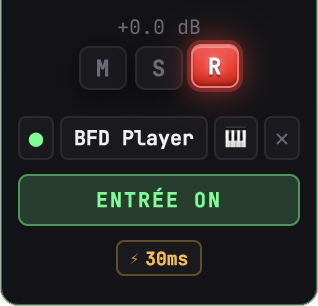
Special case: instrument plugins via MIDI
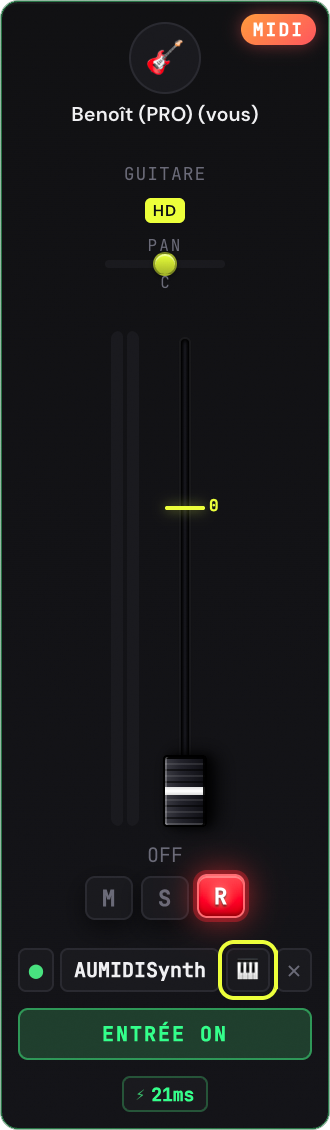
For instrument plugins (= virtual pianos, virtual drums, synths, samplers), Jamodio automatically switches your input source to MIDI mode when you load that type of plugin. You then have two options to play:
- USB MIDI keyboard — plug it in, it appears in the MIDI device list under My Settings → Input source. Play, the plugin responds, your musicians hear it.
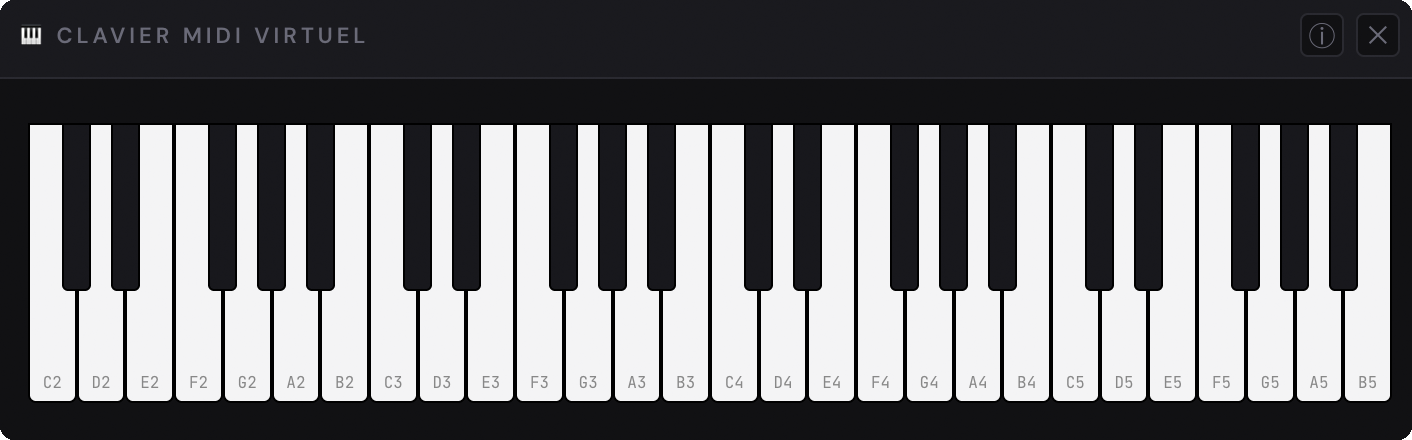
- Built-in virtual keyboard — no USB keyboard? Click the button on your channel to open a 4-octave mini keyboard (C2-C6). Mouse click, glissando, or physical keyboard shortcuts (Z X C V for white keys, S D G for black keys).
- From an external DAW — Logic Pro or Ableton Live can send their MIDI output to Jamodio Virtual MIDI (a virtual port automatically created by the agent at launch, visible in every macOS MIDI tool).
macOS : any AudioUnit v2 or v3 plugin installed in
/Library/Audio/Plug-Ins/Components/ or
~/Library/Audio/Plug-Ins/Components/ is listed automatically.
Windows : any VST3 plugin installed in
C:\Program Files\Common Files\VST3\ or
%LOCALAPPDATA%\Programs\Common\VST3\ is listed automatically.
Proprietary plugins (AmpliTube, TONEX, Surge XT, Valhalla, Logic Pro instruments…)
are recognized if installed and activated on the machine — Jamodio doesn't ship any
plugin, you bring them yourself.
Known limitations
 macOS supported
 Windows supported
- Audio Engine mode required — pure browser mode has no access to native plugins.
- 1 plugin per channel at MVP. Chaining multiple plugins (= 2-3 insert slots per channel) is on the roadmap.
- VST2 (.dll) and AAX not supported on Windows — VST3 only (VST2 is deprecated by Steinberg, AAX is Pro Tools-specific). If your instruments don't show up, make sure they're installed as VST3.
Launch Jamodio, check that your Audio Engine is active, and click + FX on your channel. That's it.
Open Jamodio →